Overview
The Log Overview dashboard provides a centralized and real time view of log ingestion metrics, storage consumption, and system health. It enables users to monitor log activity, identify trends, and quickly assess the operational status of log data across identifiers and regions.
Navigation Path
To access the Log Overview dashboard:
Open the left navigation menu
Go to Log Management
Select Log Overview
The Log Overview dashboard opens with key metrics and visual statistics.
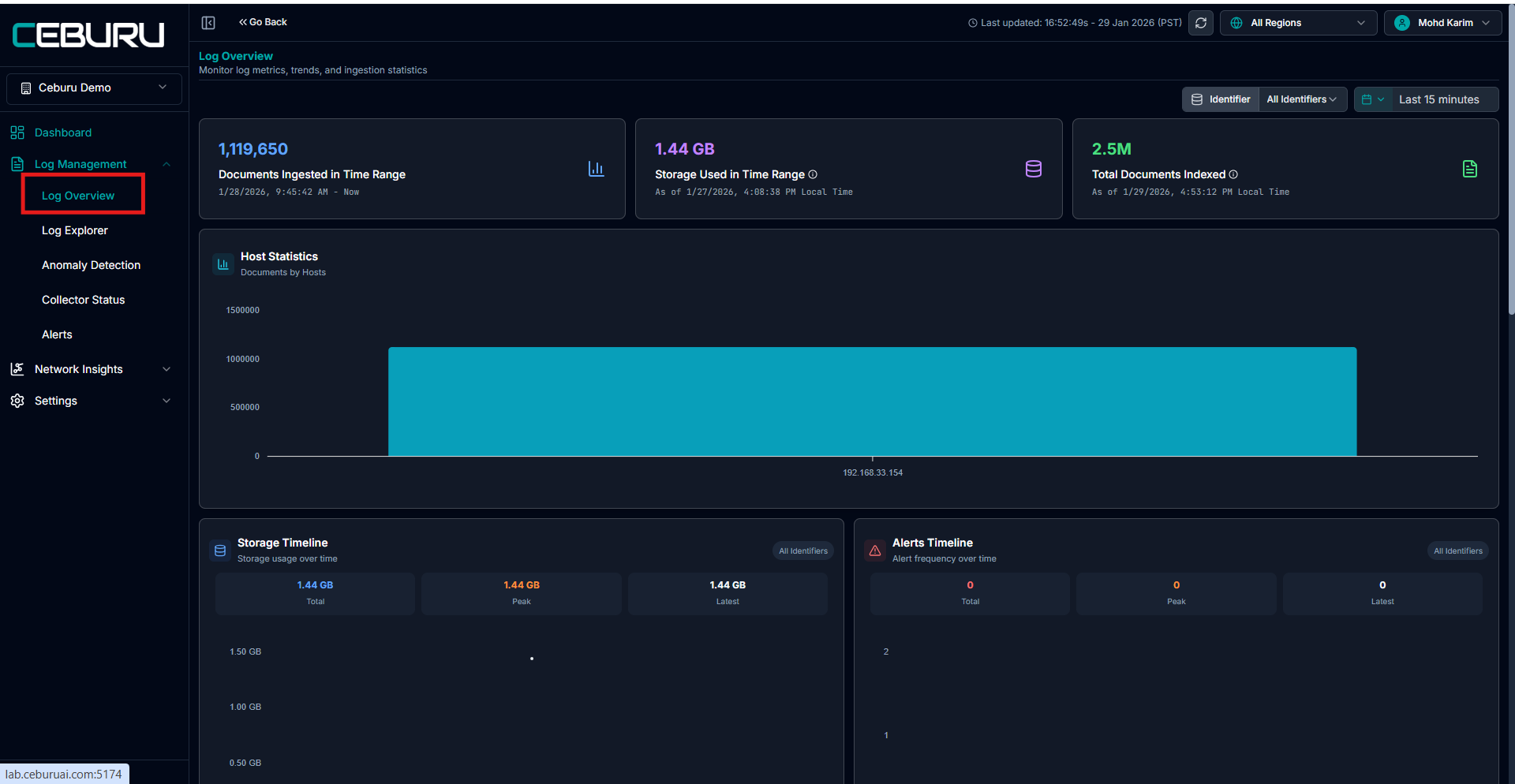
Dashboard Components and Metrics
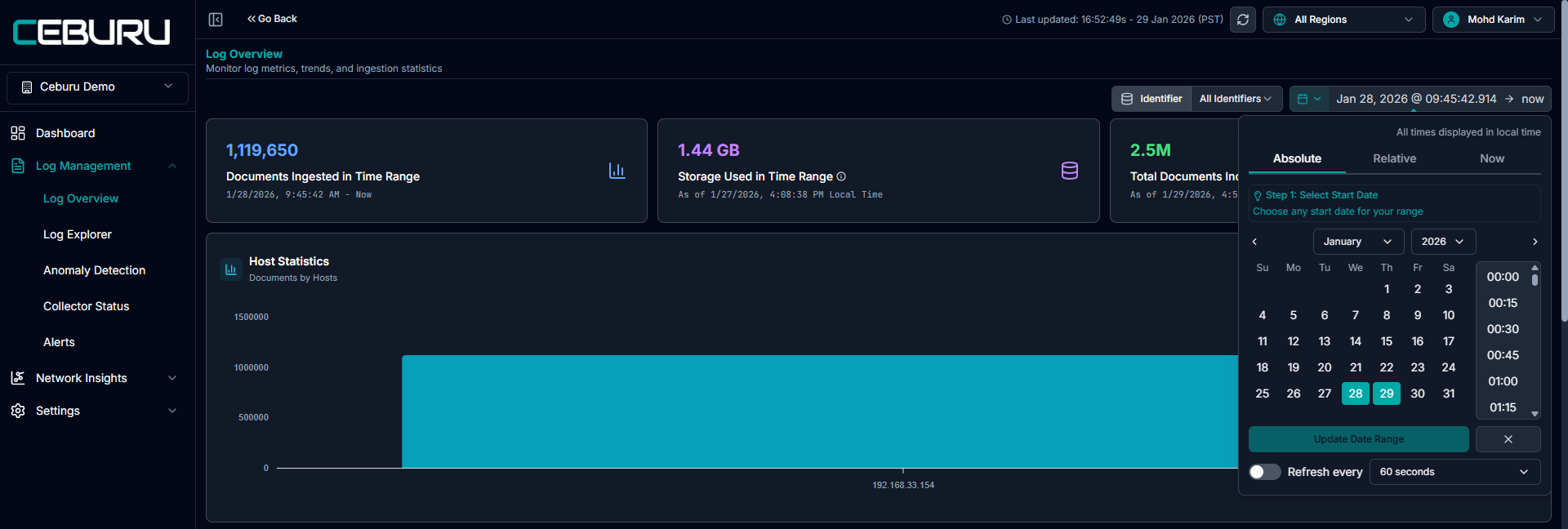
Time Range and Filtering
The time range selector is available in the top right corner of the dashboard.
Supported options include:
Last 15 minutes
Last 24 hours
Today
Custom range
KQL filters can be applied to narrow results based on identifiers, fields, or specific conditions.
Behavior notes:
Documents ingested are updated on demand based on the selected time range and identifier filters.
All charts and metrics refresh dynamically when filters or time range selections change.
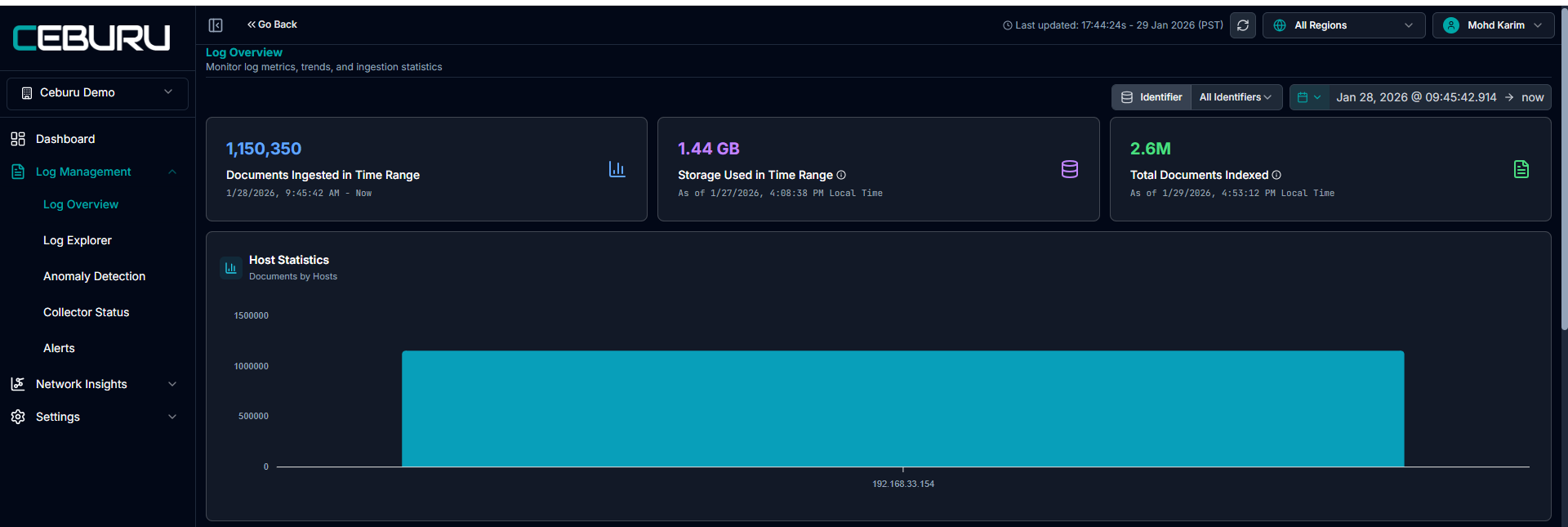
Documents Ingested
Displays the total number of log documents ingested within the selected time range.
This metric reflects ingestion volume based on:
Selected time range
Applied identifier filters
Selected regions
Storage Usage
Shows the amount of storage consumed by indexed log data.
Important details:
Storage usage metrics are updated every 12 hours in UTC.
Storage values are aggregated for the selected time range.
Selecting Today or any range within the current day displays storage usage for data ingested during the current day.
Storage metrics are scoped by identifiers and regions.
Total Documents Indexed
Represents the cumulative number of log documents indexed in the system.
This metric reflects the overall indexed volume and is not limited to the selected time range.
Host Statistics
Provides a graphical view of log volume grouped by host.
This visualization helps:
Identify high volume log generating hosts
Detect uneven or unexpected log distribution across systems
Storage Timeline
Displays storage usage trends over time.
Includes:
Total storage usage
Peak storage usage
Latest storage usage
Values are shown based on the selected filters and identifiers.
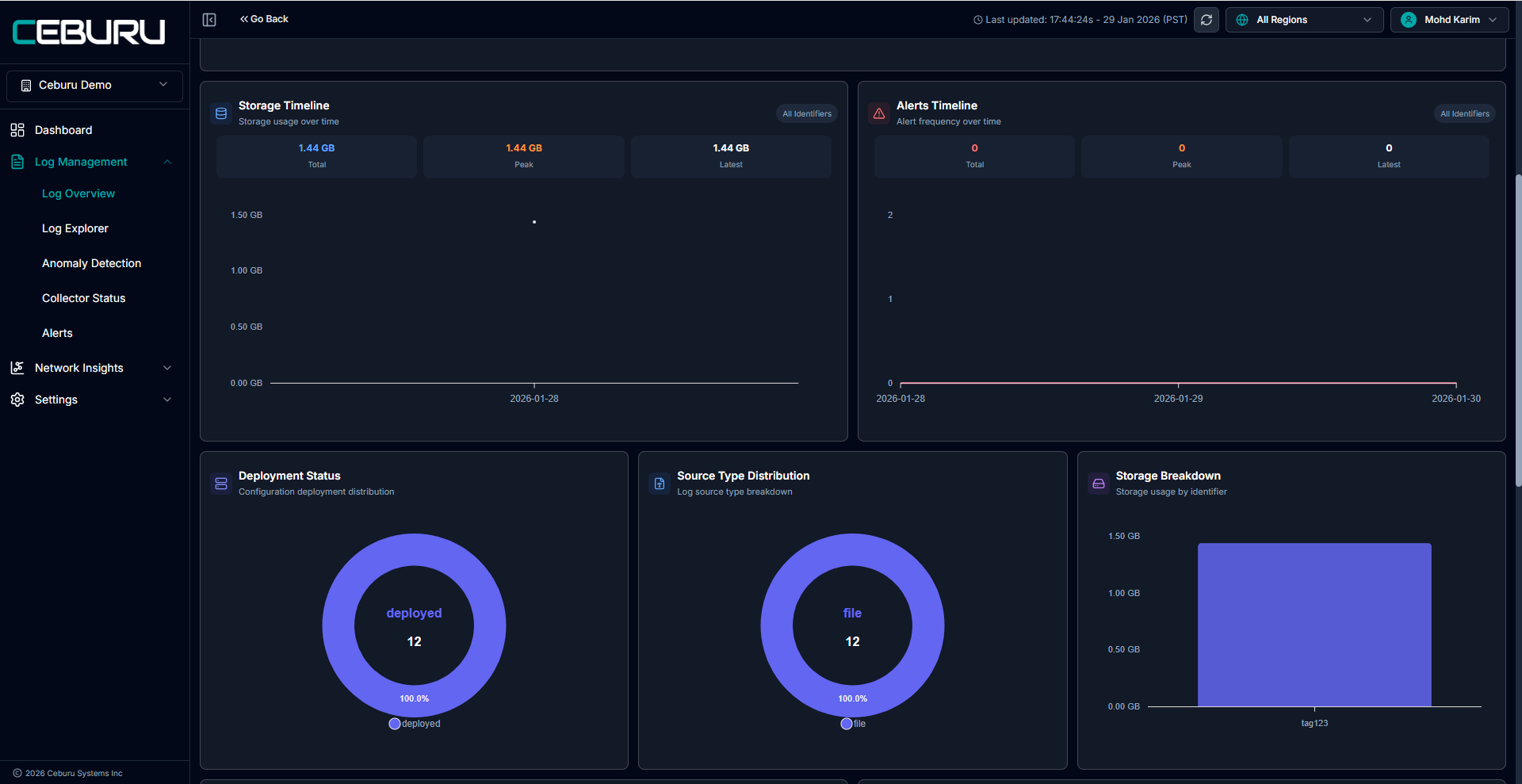
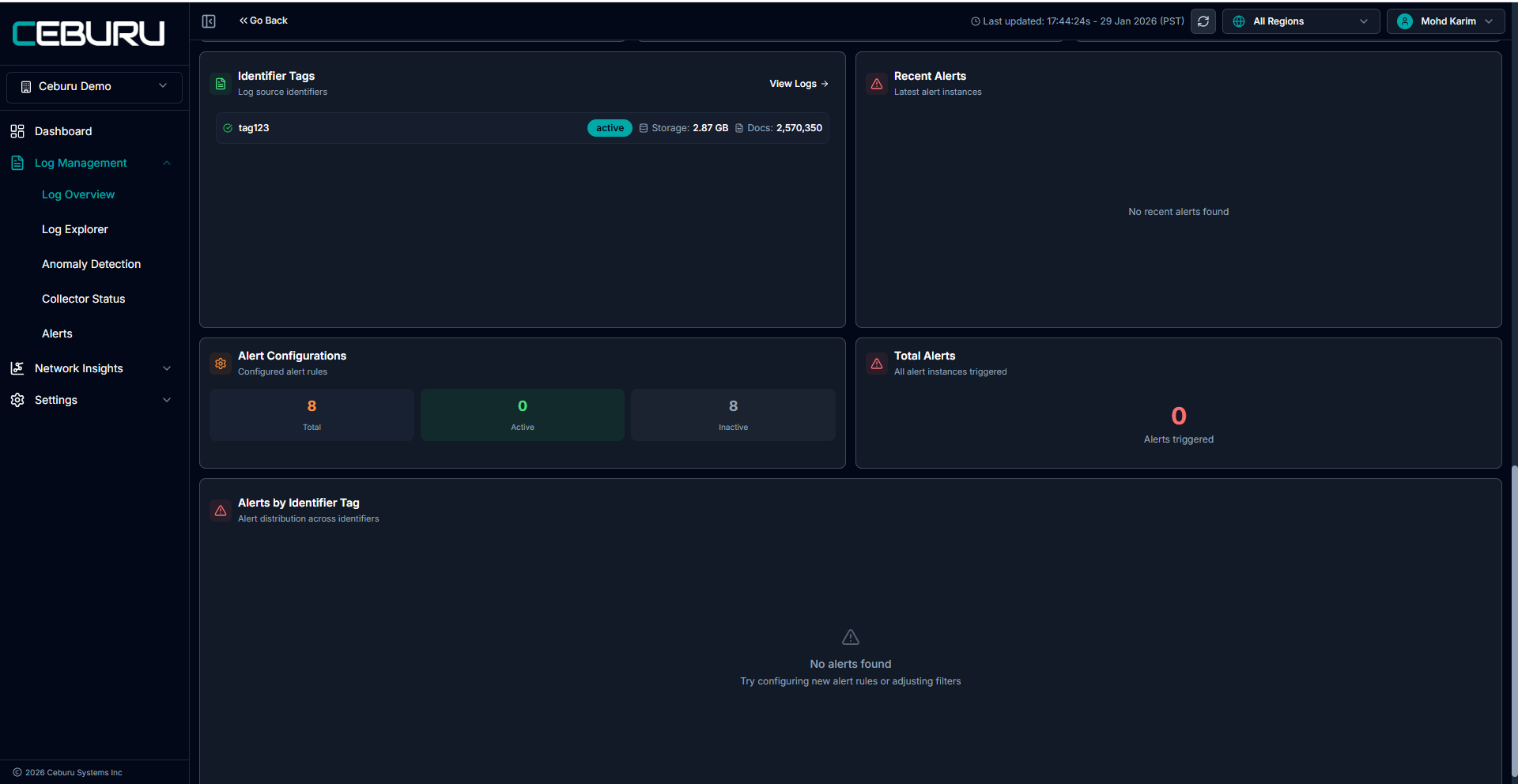
Alerts Overview
Provides visibility into alert activity and alert configuration status.
Includes:
Alerts timeline showing alert frequency over time
Recent alerts section displaying latest triggered alerts
Total alerts triggered count
Alert configurations summary showing total, active, and inactive rules
If no alerts are triggered, the dashboard displays a clear message indicating that no alerts were found.
Identifier Tags
Displays configured log source identifiers along with their current status.
For each identifier, the dashboard shows:
Identifier status (active or inactive)
Associated storage usage
Document count
This section helps track log ingestion and storage usage per identifier.
Was this article helpful?
That’s Great!
Thank you for your feedback
Sorry! We couldn't be helpful
Thank you for your feedback
Feedback sent
We appreciate your effort and will try to fix the article