Exporting Logs
Log Explorer offers two ways to export: a Quick CSV Export for immediate downloads, and a Full Export that prepares up to 20 million documents server-side while you keep working.
? Exports always use your current search scope — query (or semantic search), filters, identifier tag, and time range. What you see in the explorer is what you export.
Step 1 — Open the Export panel
Open Log Management → Log Explorer, set up your query, filters, and time range, then click Export.
Step 1 — The Export button in Log Explorer
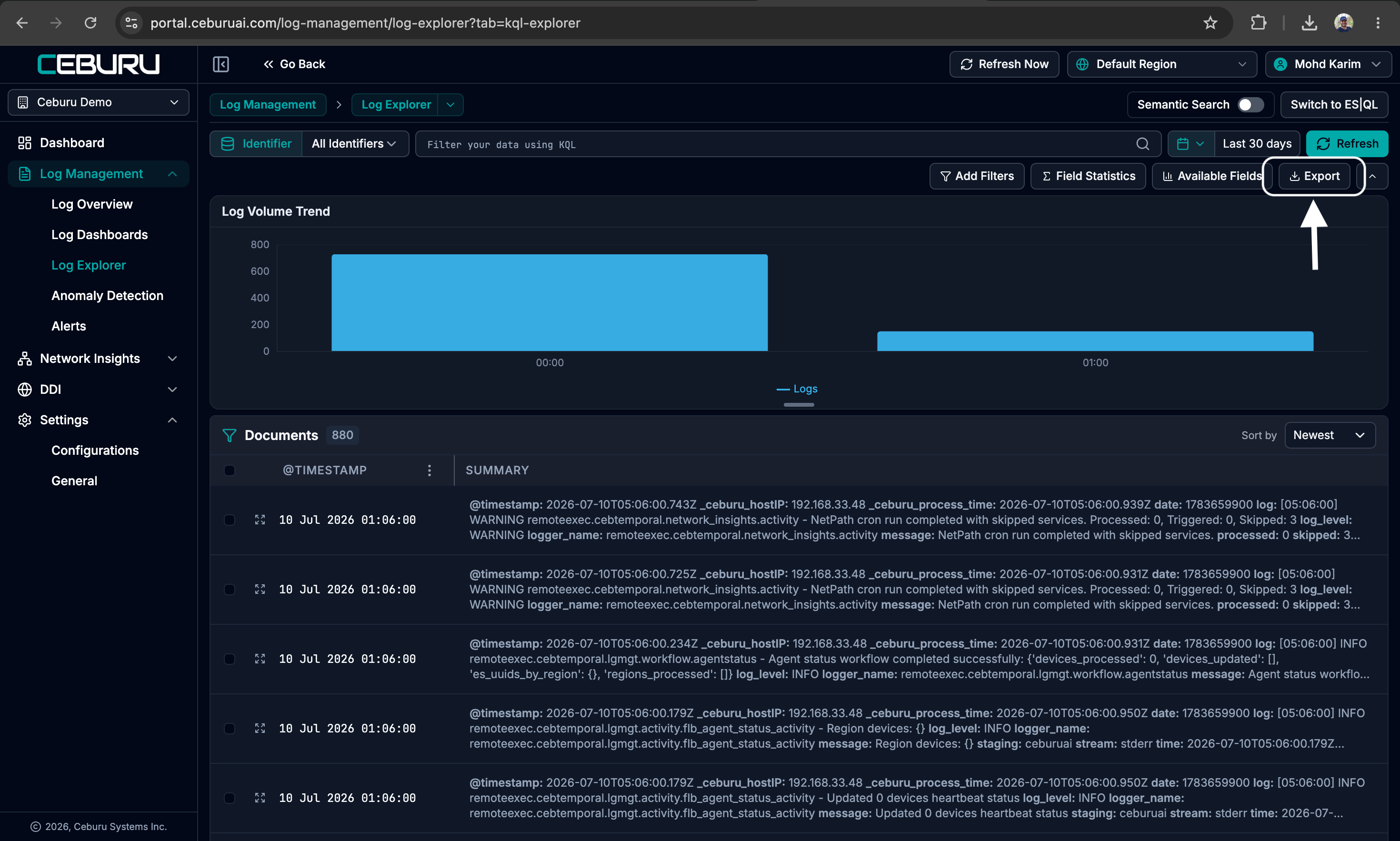
The panel opens with your Export Scope at the top — the query, time range, and number of matching documents — so you can confirm what you’re about to export.
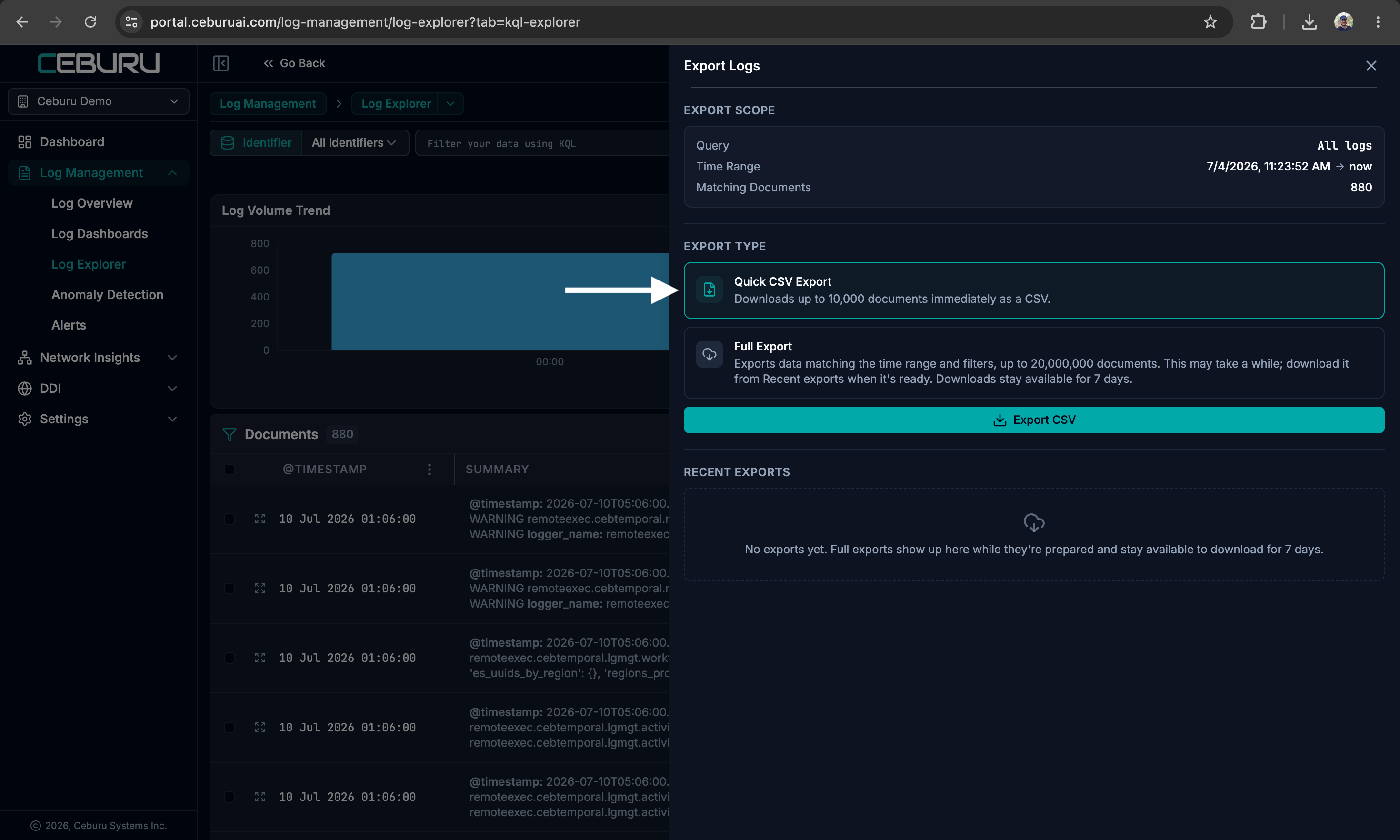
Step 2 — Quick CSV Export (small, instant)
For small datasets, choose Quick CSV Export and click Export CSV. Up to 10,000 documents download immediately as a CSV, straight from your browser. If you’ve selected specific documents in the table, only those are exported.
Step 2 — Quick CSV Export for immediate downloads
Step 3 — Full Export (up to 20 million documents)
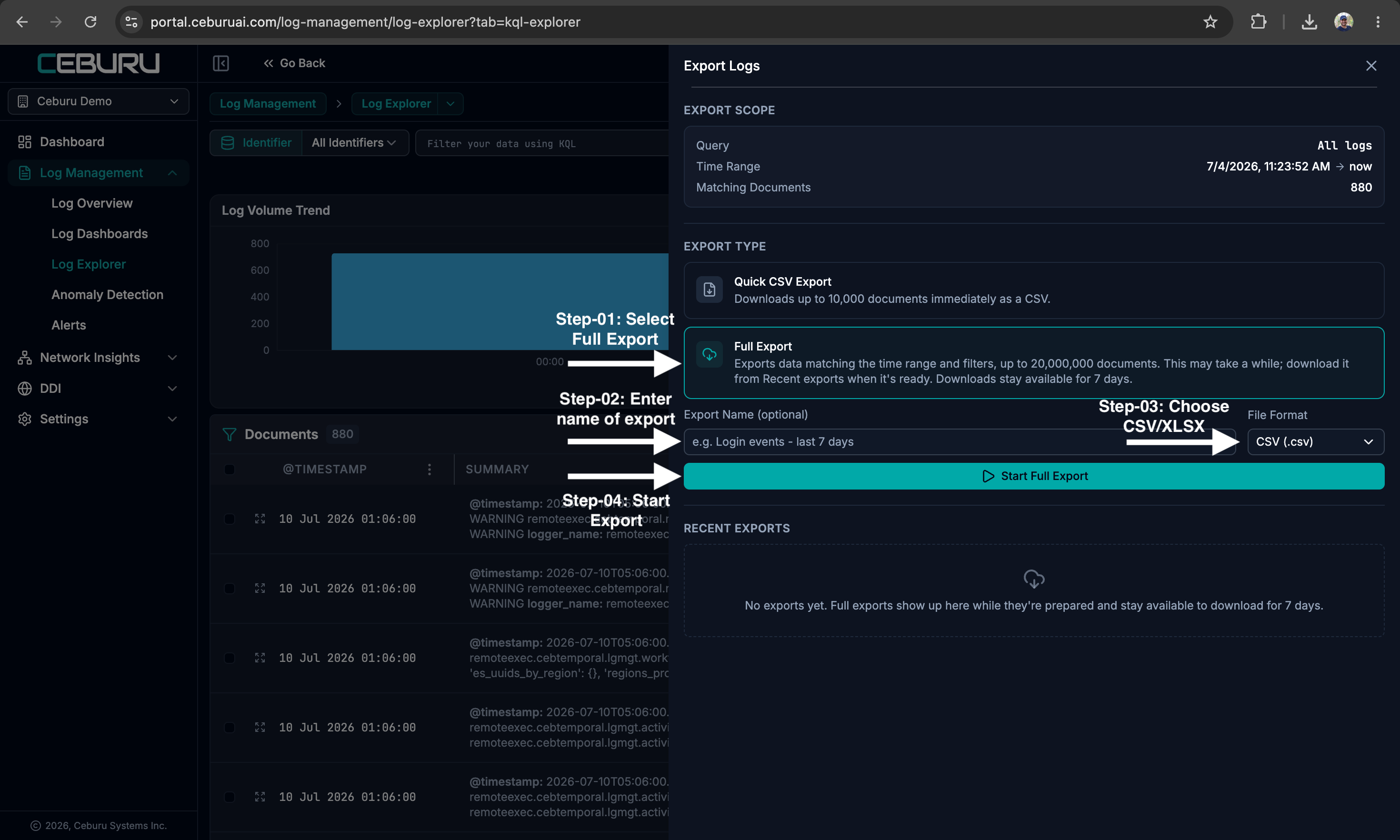
For large datasets, use a Full Export:
- Select Full Export.
- Optionally give the export a name (e.g. “Login events – last 7 days”).
- Choose the file format: CSV or Excel (.xlsx).
- Click Start Full Export.
Step 3 — Full Export: select, name, choose format, start
The export is prepared on the server — you can close the panel and keep working. You’ll receive an email when your export is ready to download. Full exports run per region, so switch from “All Regions” to a specific region first. If your search matches more than 20 million documents, the first 20 million are included and the panel tells you before you start.
Step 4 — Download and manage your exports
Every export appears under Recent exports with a live status:
Step 4 — Managing exports in the Recent exports list
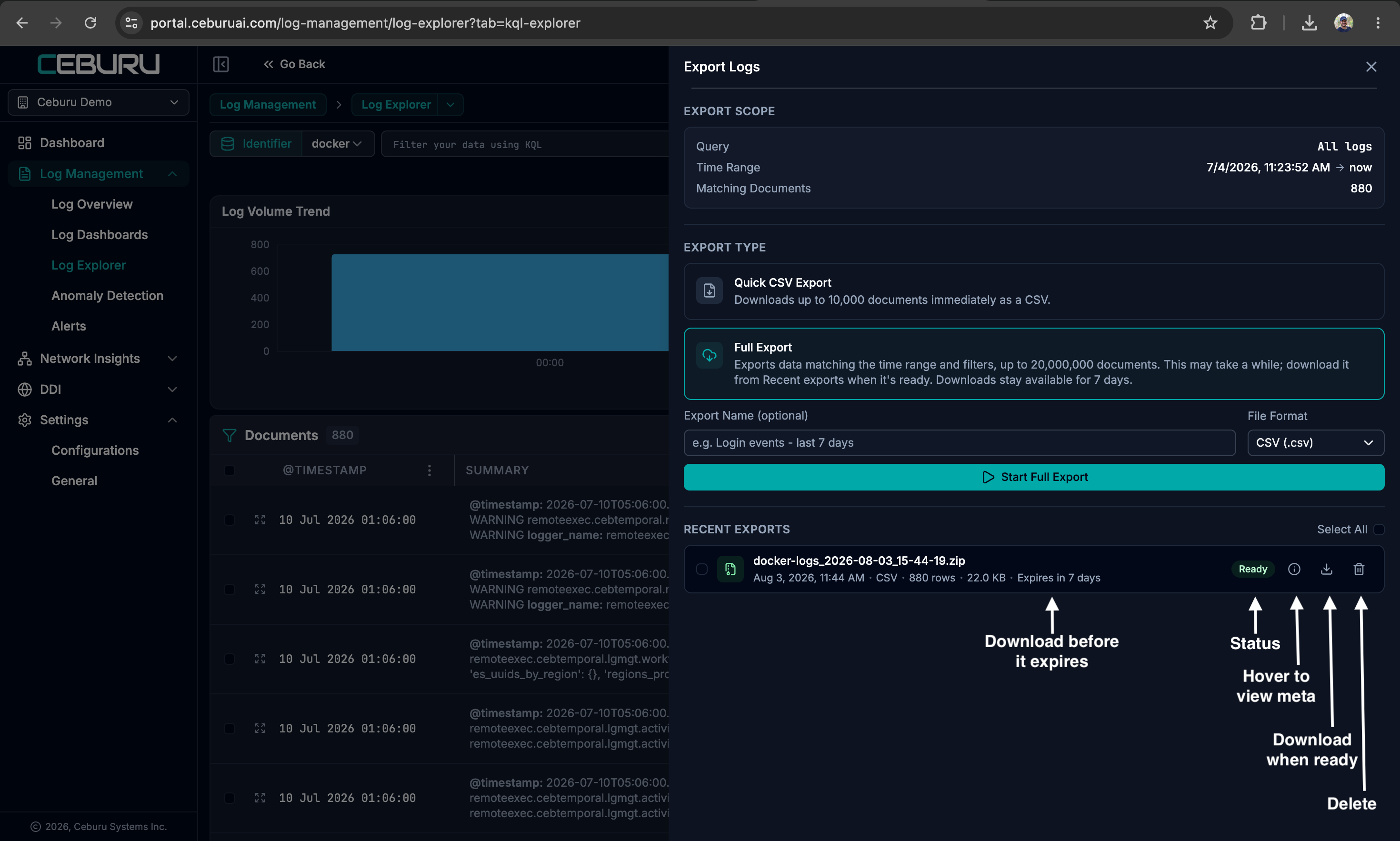
- Status badge — Queued and Preparing exports show progress; Ready means it’s done.
- Details — hover to see exactly what the export covered: query, semantic filter, date range, identifier tag, region, format, matched document count, and who created it.
- Download — available for 7 days after completion (the row shows time remaining). You’ll also get an email notification the moment it’s ready.
- Run again — start a fresh export with identical parameters (handy for failed or expired ones).
- Cancel / Delete — stop an in-progress export, or remove one and its file.
The list follows your current region and identifier tag selection, so you always see the exports relevant to where you’re working. Sort by newest, oldest, largest, or name.
FAQ
Why is Full Export disabled?
Usually one of: “All Regions” is selected (pick a specific region), another export is still in progress (one at a time), or nothing matches your current query and time range.
What format is the download?
A ZIP archive containing your CSV or Excel files — large exports are split across multiple files for easy handling.
Do exports include semantic search results?
Yes — if a semantic search is applied, the export uses the same generated query and meaning-based matching as the explorer.
How will I know when it’s done?
You’ll receive an email when the export is ready, and the Recent Exports panel shows the status live.
Was this article helpful?
That’s Great!
Thank you for your feedback
Sorry! We couldn't be helpful
Thank you for your feedback
Feedback sent
We appreciate your effort and will try to fix the article