The NetMap Dashboard under Network Insights → Network Map provides a visual topology of your scanned subnet, along with a structured node inventory and connection mapping.
Navigate to: Network Insights → Network Map
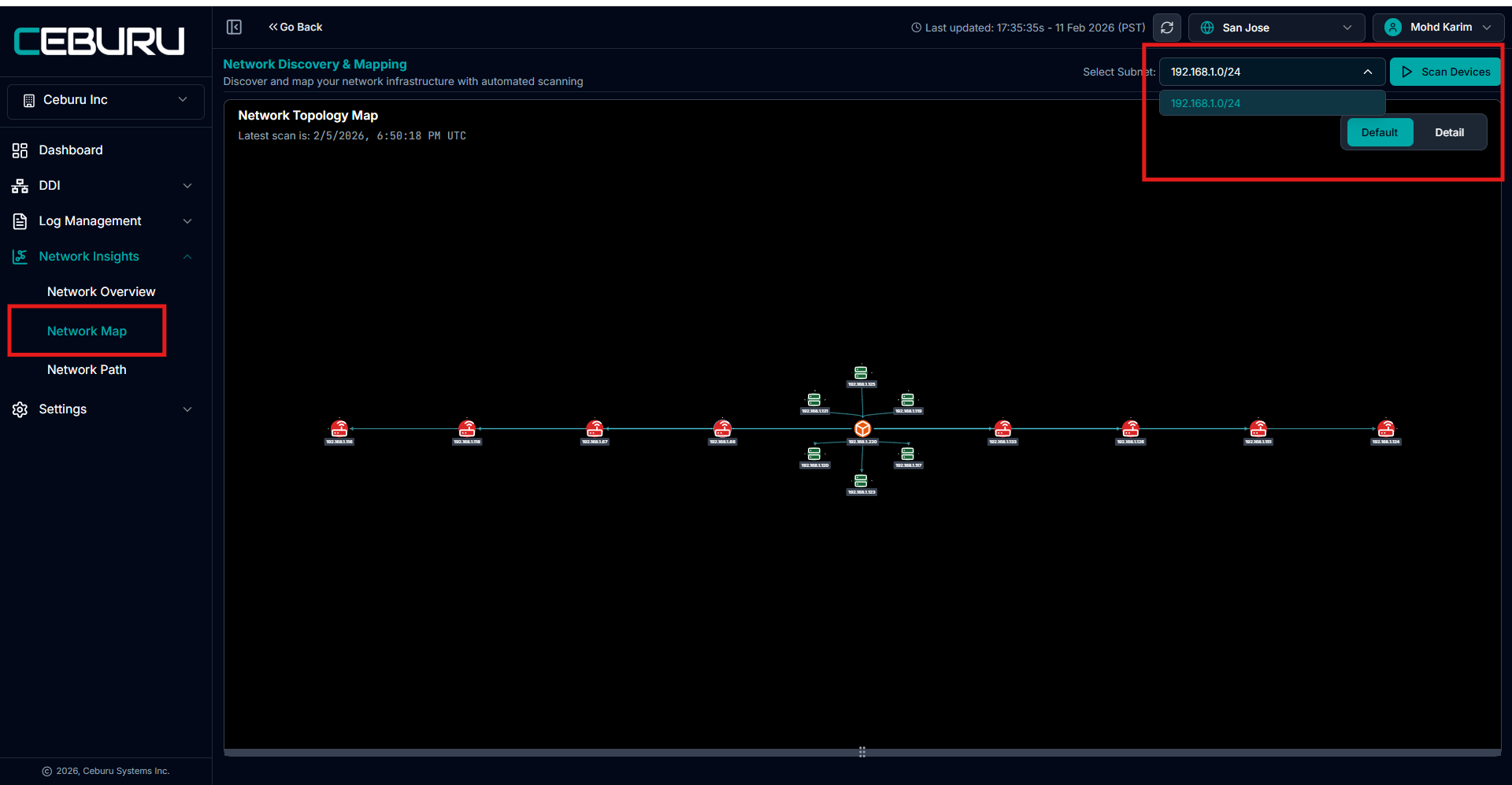
At the top right:
Select Subnet dropdown
Click Scan Devices
Once the subnet scan is completed, the system builds:
Node Inventory
Network Topology Map
Device Connections
1. Subnet Selection & Scan
Select Subnet: Choose the required subnet (for example: 192.168.1.0/24).
Click Scan Devices to:
Discover routers, switches, and hosts
Collect device metadata
Build network topology
Identify live devices
Map interconnections
The scan timestamp is displayed under:
Latest scan is: [Date & Time]
2. Network Topology Map (Default View)
After scanning, the Default View displays:
Linear network topology
Routers
Switches
Hosts
Interconnected paths
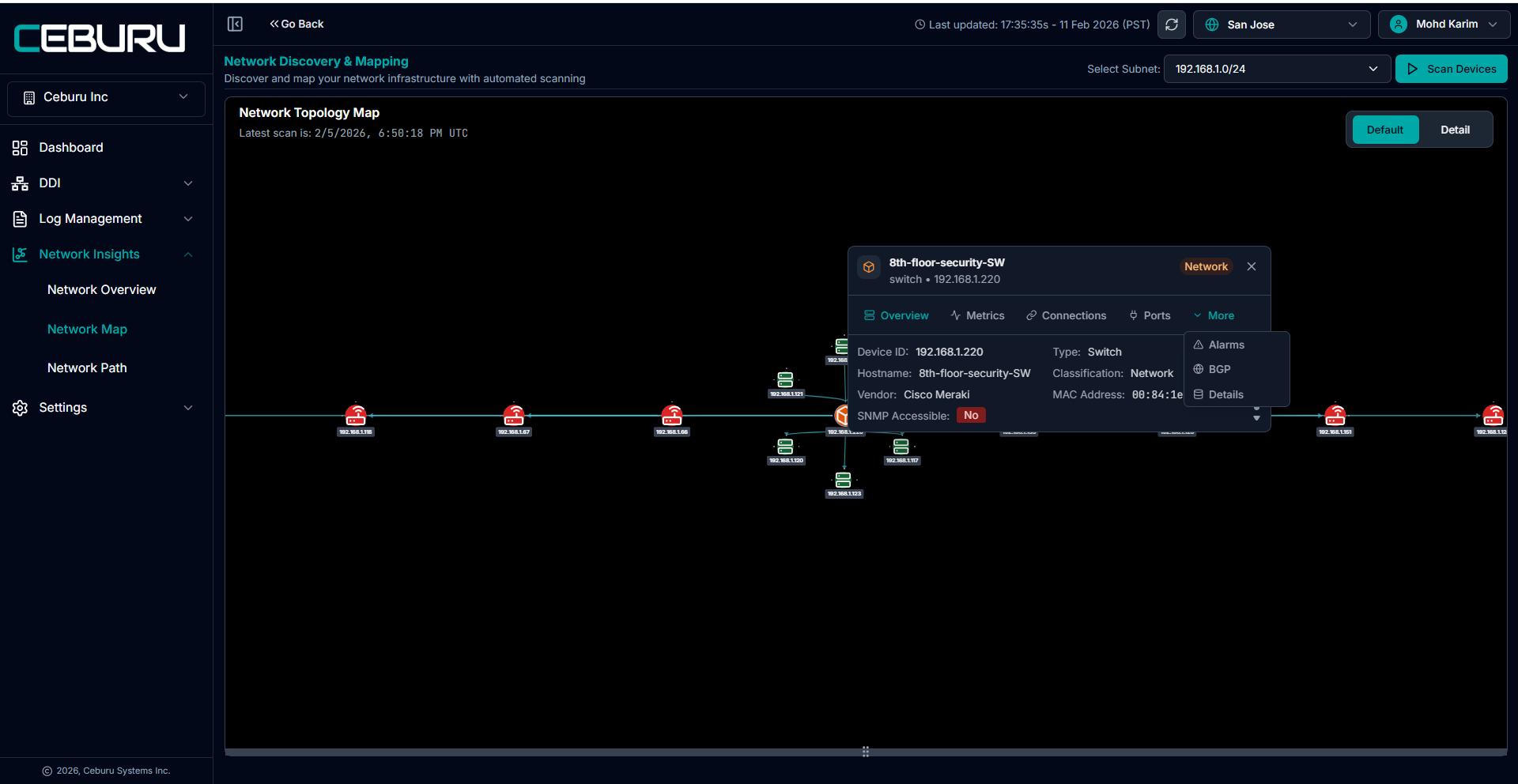
When a node is selected in the topology map, the device side panel opens with these tabs:
Metrics → Device performance metrics Connections → Device links Ports → Port-level details More → Alarms BGP
3. Node Details view
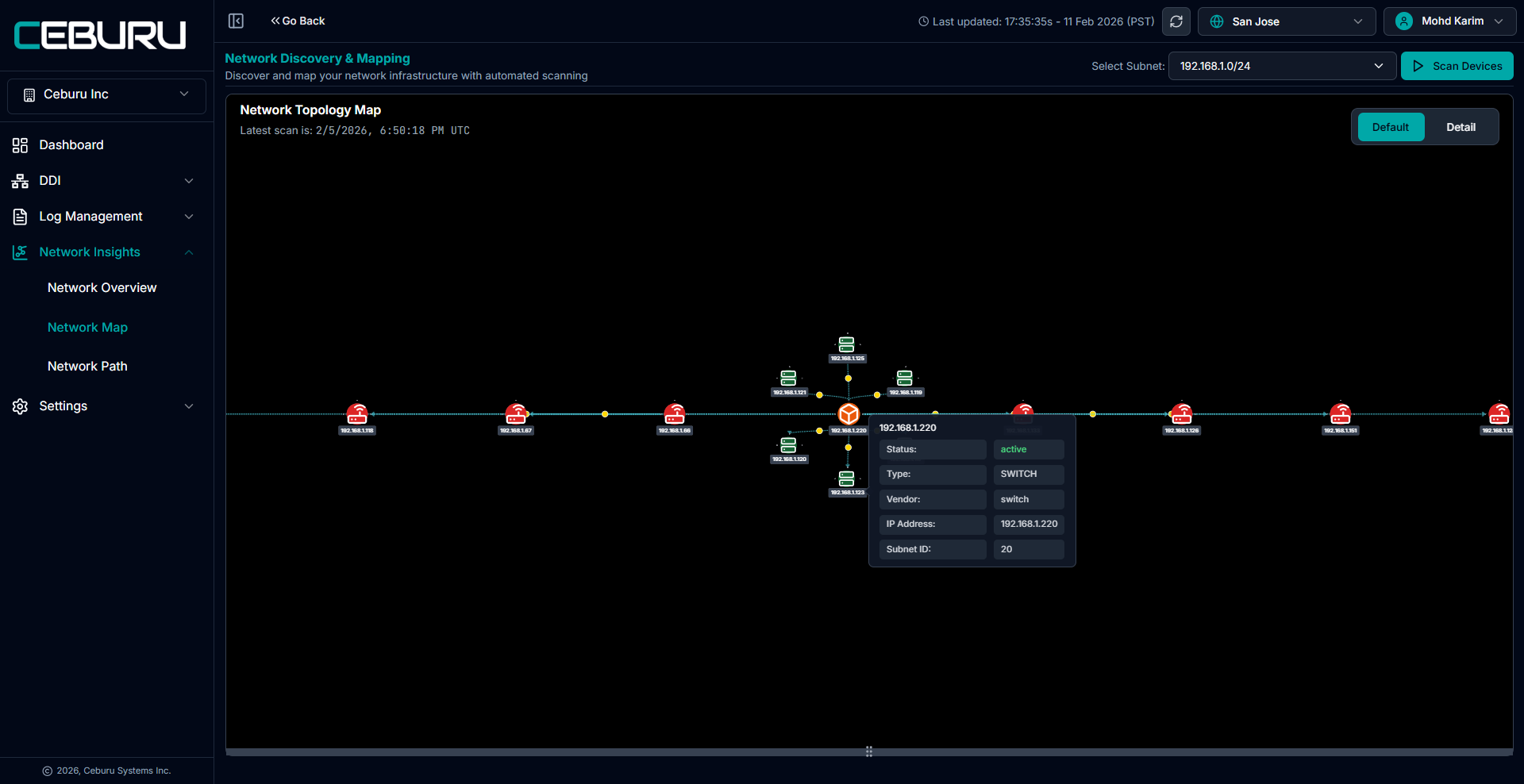
Click any device on the map to view details:
Overview Tab
Displays:
Device ID
Hostname
Device Type (Router / Switch / Host)
Classification
Vendor
IP Address
Subnet ID
MAC Address
SNMP Accessible status
If SNMP is not configured correctly:
SNMP Accessible → No
4. What Happens After Scan
Once subnet scan completes, the system automatically:
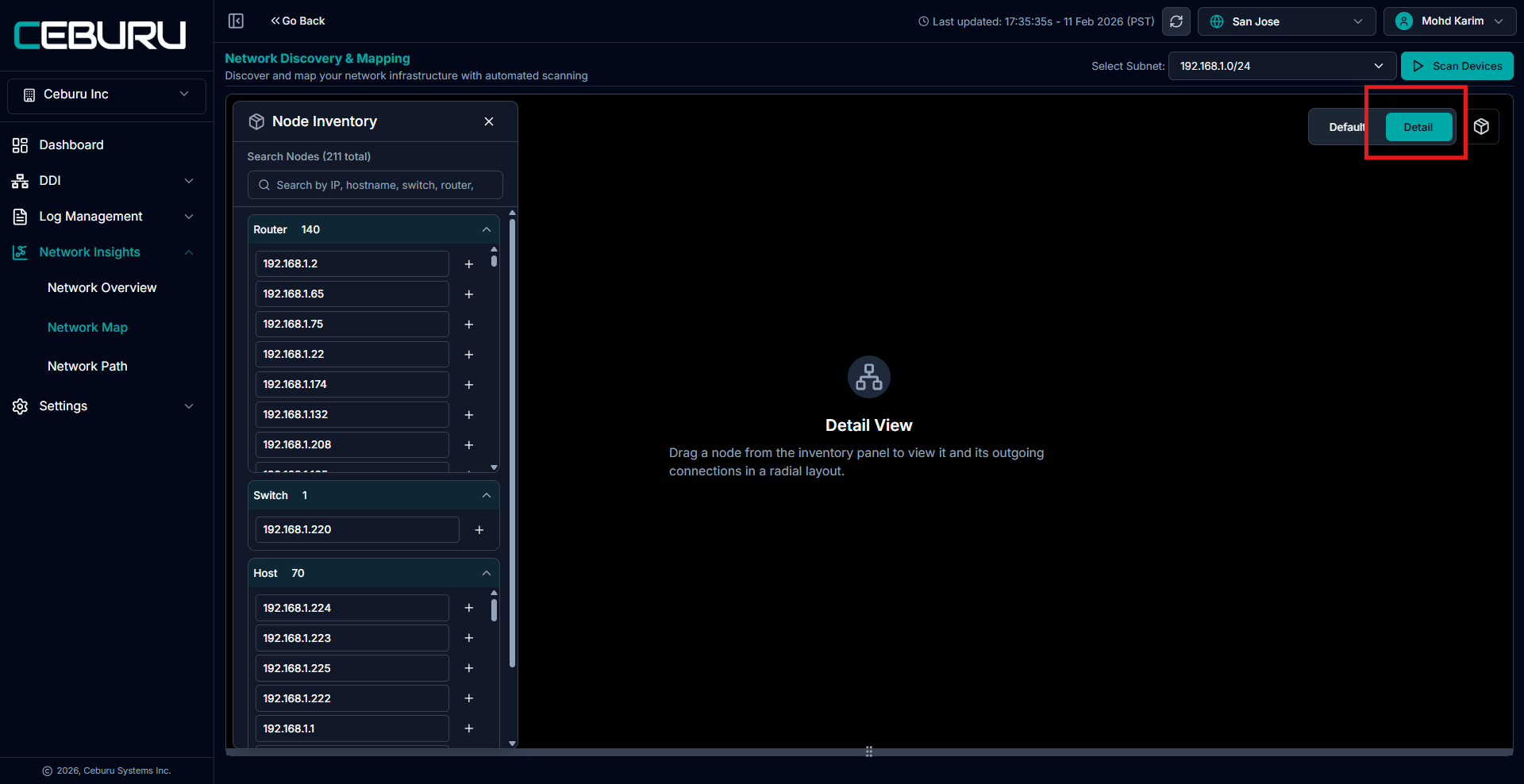
Builds Node Inventory
Identifies device types
Maps L2/L3 relationships
Detects device connectivity
Creates topology visualization
This gives:
Real-time network structure
Device dependency mapping
Inter-device communication path visibility
5. Connection Mapping
NetMap shows:
Device-to-device connections
Path between routers and switches
Downstream hosts under switches
Network hierarchy
Was this article helpful?
That’s Great!
Thank you for your feedback
Sorry! We couldn't be helpful
Thank you for your feedback
Feedback sent
We appreciate your effort and will try to fix the article