DDI Custom Alerts allow to proactively monitor DHCP utilization and IP related conditions at both the server level and scope level. These alerts help identify capacity risks early and ensure timely action before service impact occurs.
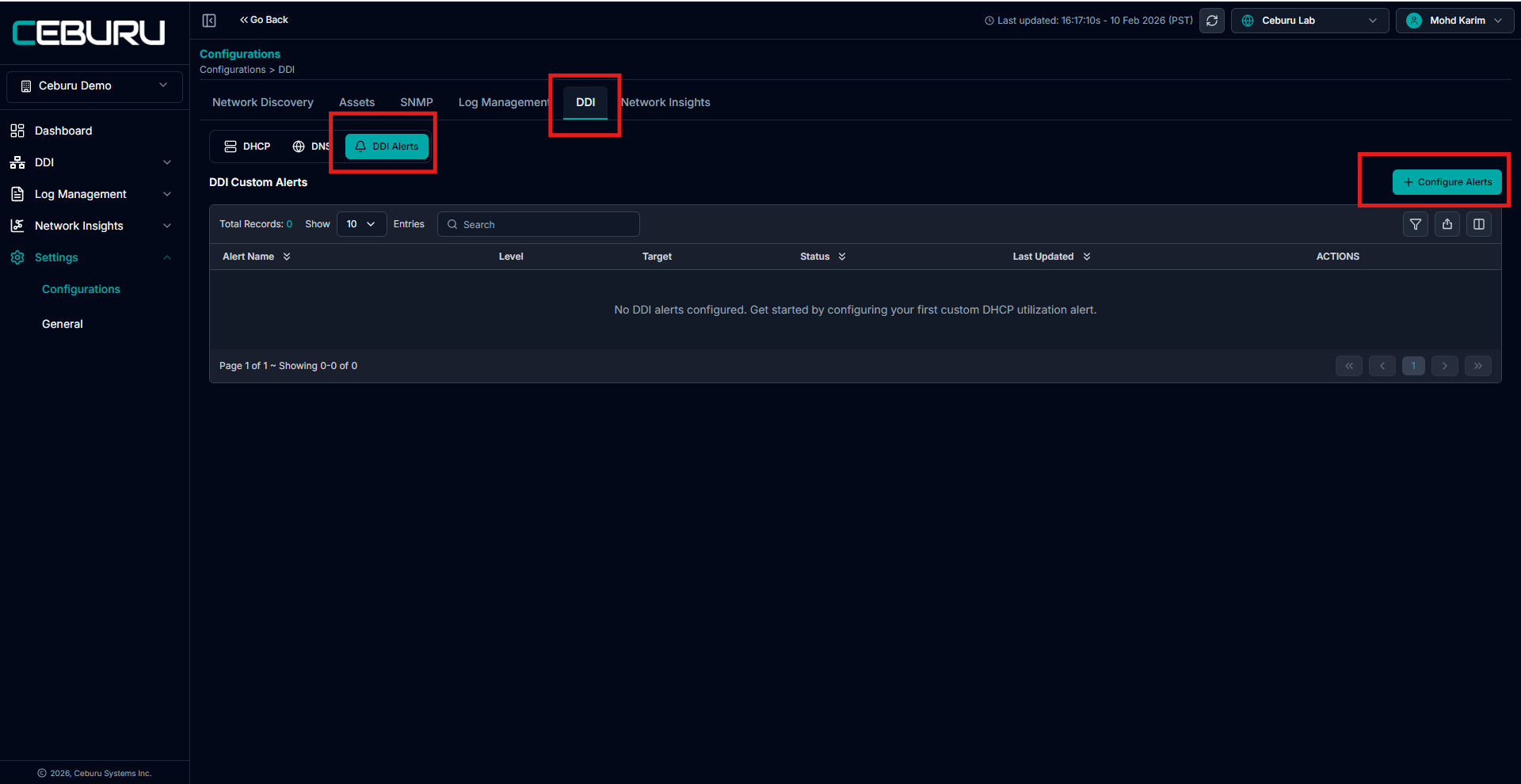
DDI alerts are configured from Settings → Configurations → DDI → DDI Alerts and are monitored centrally under DDI → Alerts.
Accessing DDI Custom Alerts Configuration:
Navigate to Settings → Configurations → DDI
Select the DDI tab
Click on DDI Alerts
This page displays all configured DDI Custom Alerts.
Manual Refresh:
Manual refresh allows:
DHCP server utilization is recalculated
Scope and server utilization thresholds are evaluated
DDI custom alerts are triggered automatically if thresholds are exceeded

Auto Refresh and Alert Triggers:
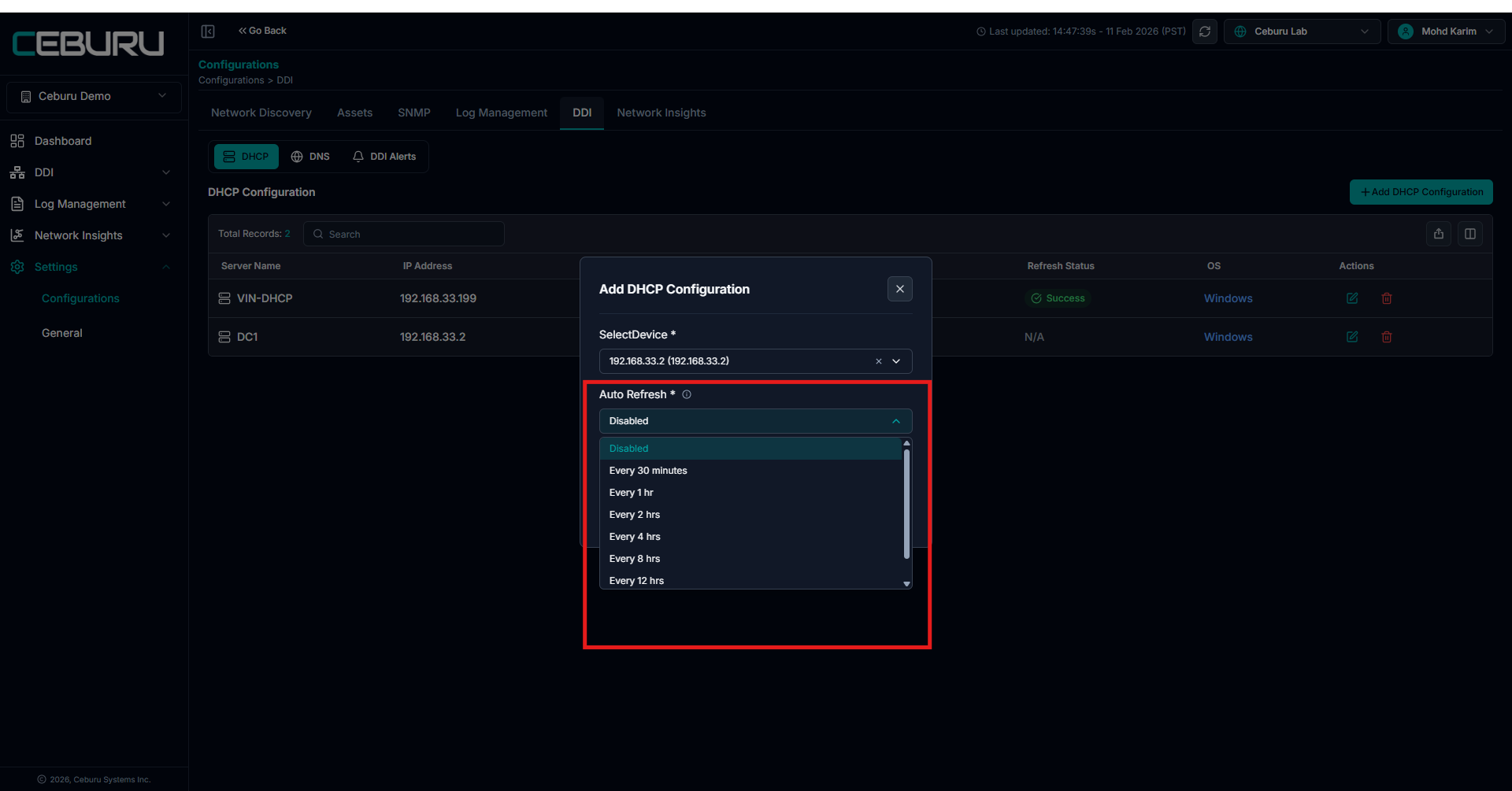
Auto refresh runs at configured intervals to keep IPAM data up to date.
During auto refresh:
DHCP server utilization is recalculated
Scope and server utilization thresholds are evaluated
DDI custom alerts are triggered automatically if thresholds are exceeded
If utilization remains above the threshold, cooldown settings control how frequently alerts are re triggered
Creating a DDI Custom Alert:
Click Configure Alerts to open the Create DDI Alert panel.
You can configure alerts at two levels:
Server Level
Scope Level
Server Level Alerts:
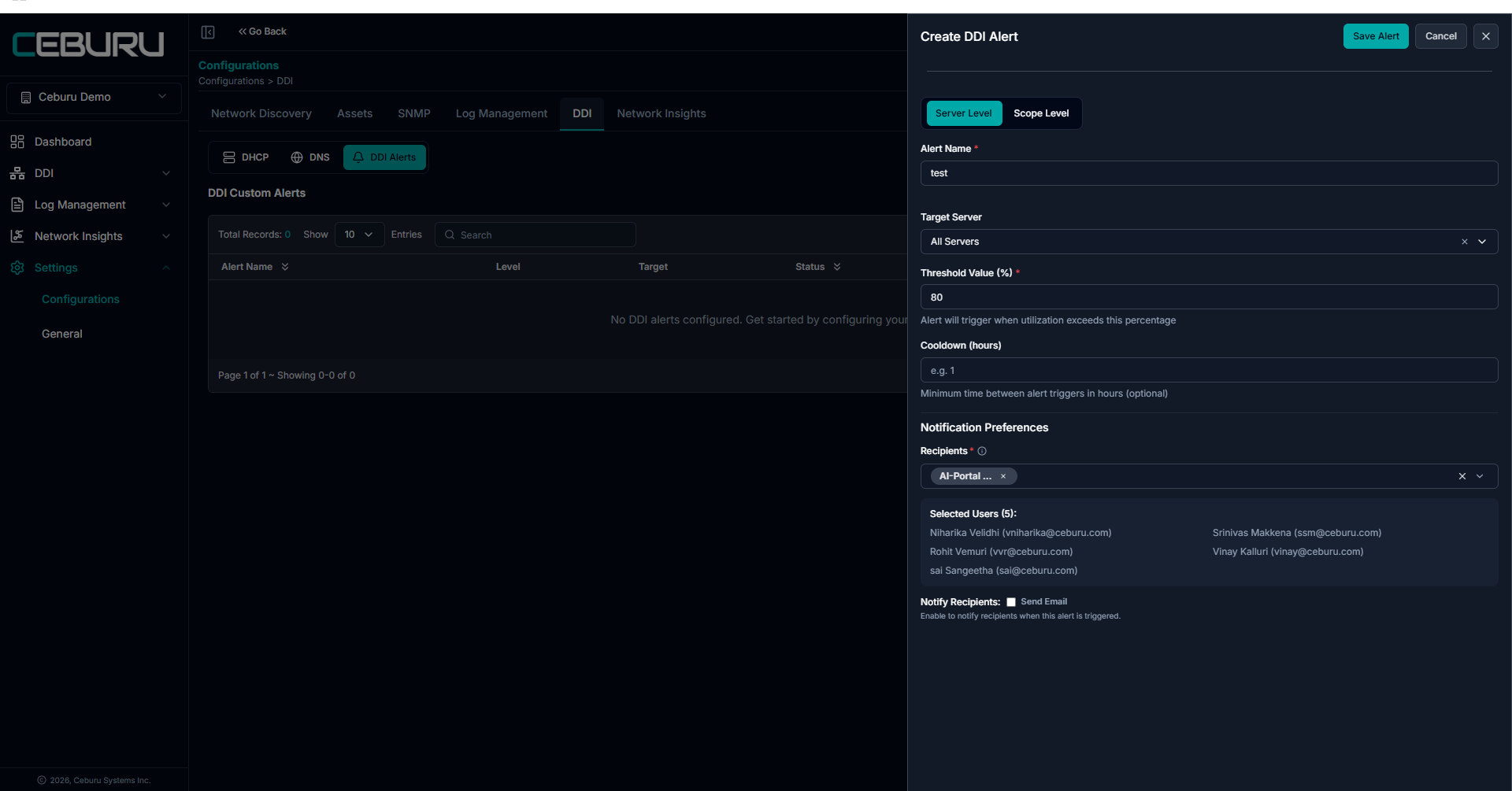
Server level alerts monitor DHCP utilization across one or more DHCP servers.
Alert Name: A user friendly name to identify the alert.
Target Server:
Select a specific DHCP server
Or choose All Servers to apply the alert globally
Threshold Value (%): Defines the utilization percentage at which the alert will trigger. For example, if set to 80 percent, the alert triggers when DHCP utilization exceeds 80 percent.
Cooldown (hours): Optional setting that defines the minimum time between alert triggers. Prevents repeated alerts during sustained high utilization.
Notification Preferences:
Select recipient groups
Enable email notifications if required
Result: Once saved, the alert continuously monitors DHCP utilization at the server level and triggers when the defined threshold is crossed.
Scope Level Alerts:
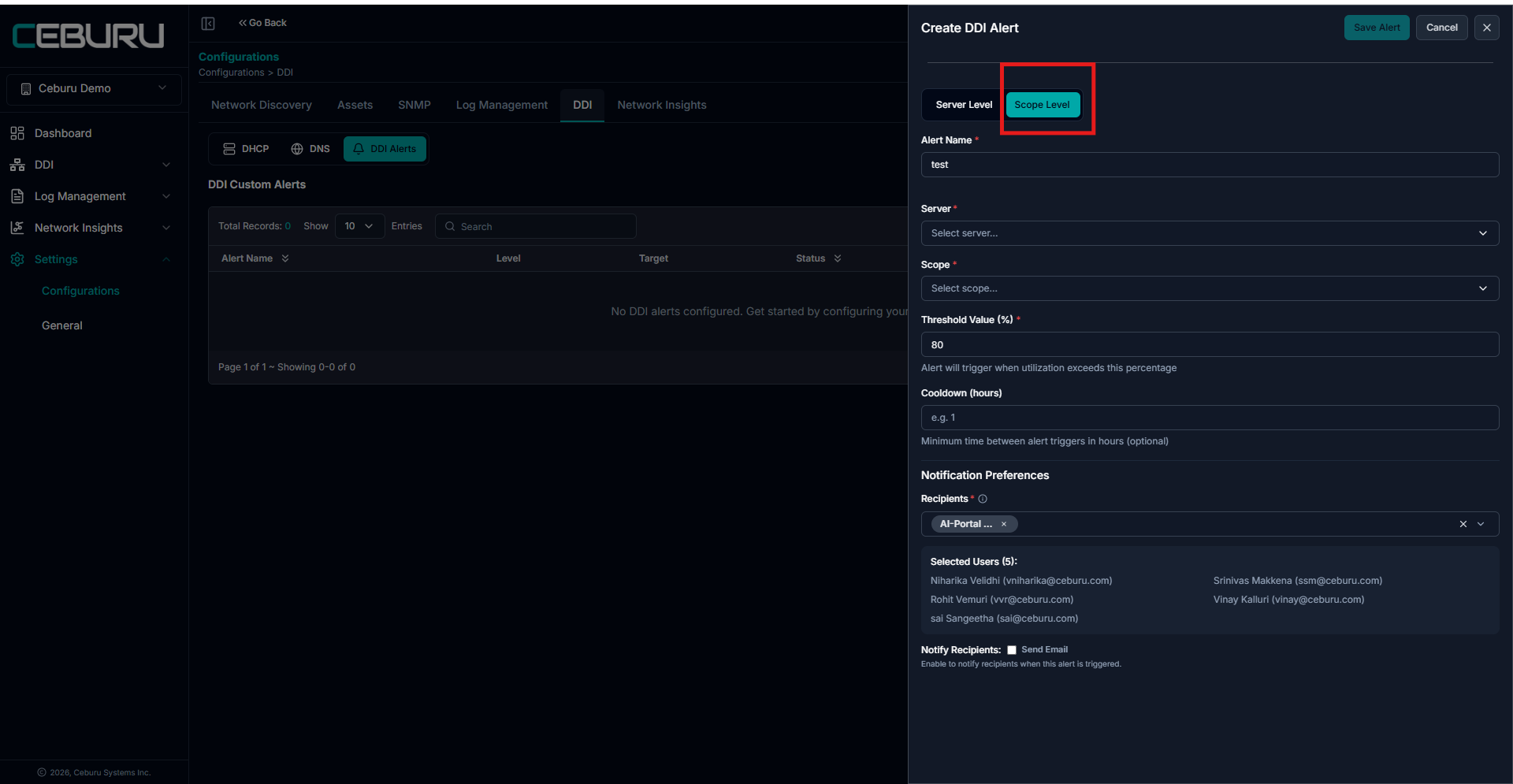
Scope level alerts monitor utilization for a specific DHCP scope.
Alert Name: Name of the alert.
Server: Select the DHCP server that hosts the scope.
Scope: Select the specific DHCP scope to monitor.
Threshold Value (%): Defines the utilization threshold for that scope.
Cooldown (hours): Optional delay between alert triggers.
Notification Preferences:
Select users or groups to notify
Enable email notifications if required
Result: Once saved, the alert monitors only the selected scope and triggers when utilization exceeds the defined threshold.
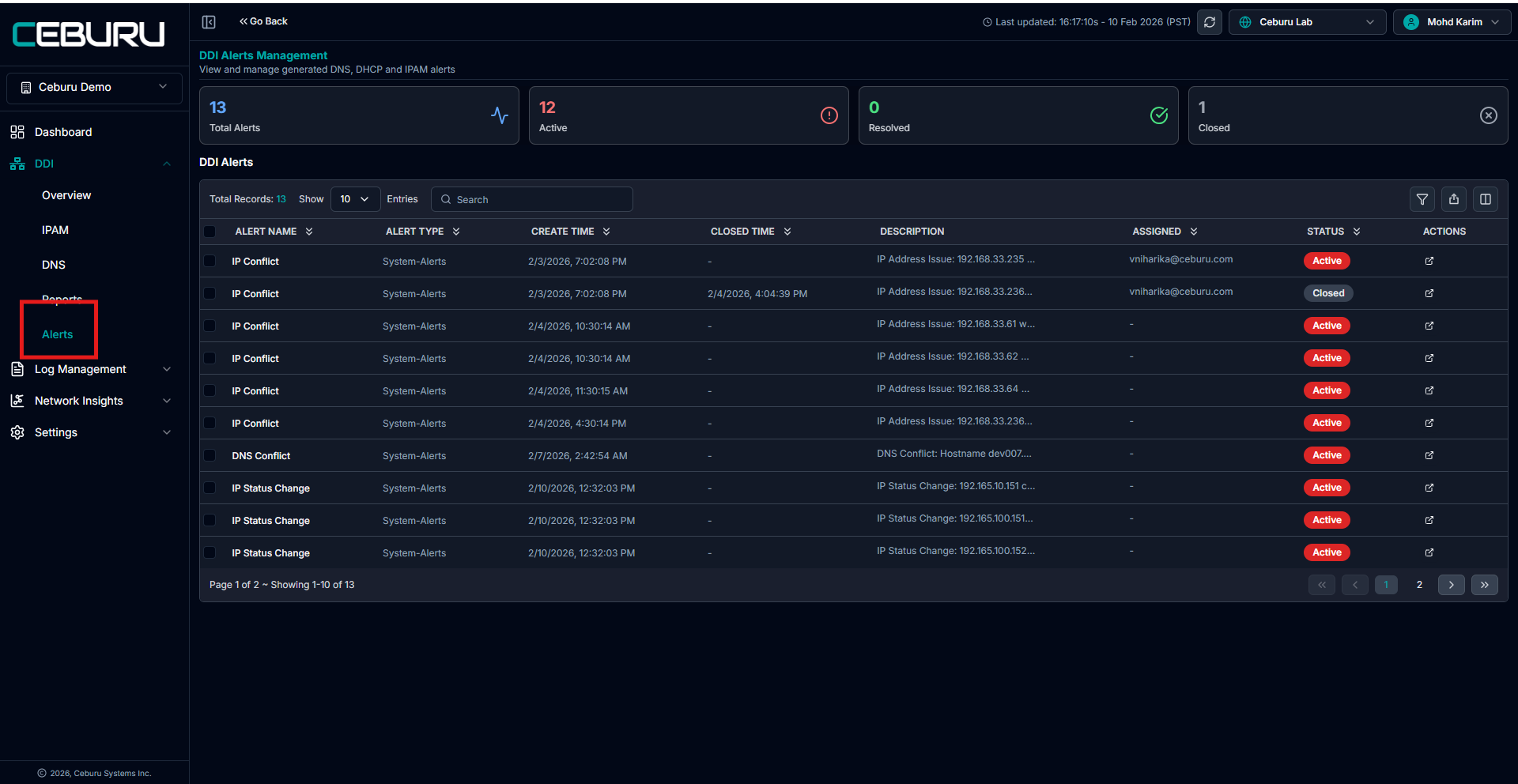
Viewing DDI Alerts:
After configuring alerts, navigate to
DDI → Alerts
This page displays both:
System Alerts generated automatically by the platform
Custom Alerts configured under DDI Alert Configuration
DDI Alerts Dashboard:
At the top of the page, summary cards display:
Total Alerts
Active Alerts
Resolved Alerts
Closed Alerts
Below the summary, the alerts table lists all alerts with details.
System Alerts
Automatically generated alerts such as:
IP conflicts
DNS conflicts
IP status changes
Custom Alerts
User defined alerts based on DHCP utilization thresholds at server or scope level.
Managing Alerts:
Each alert provides actions to assign, resolve, or close the alert.
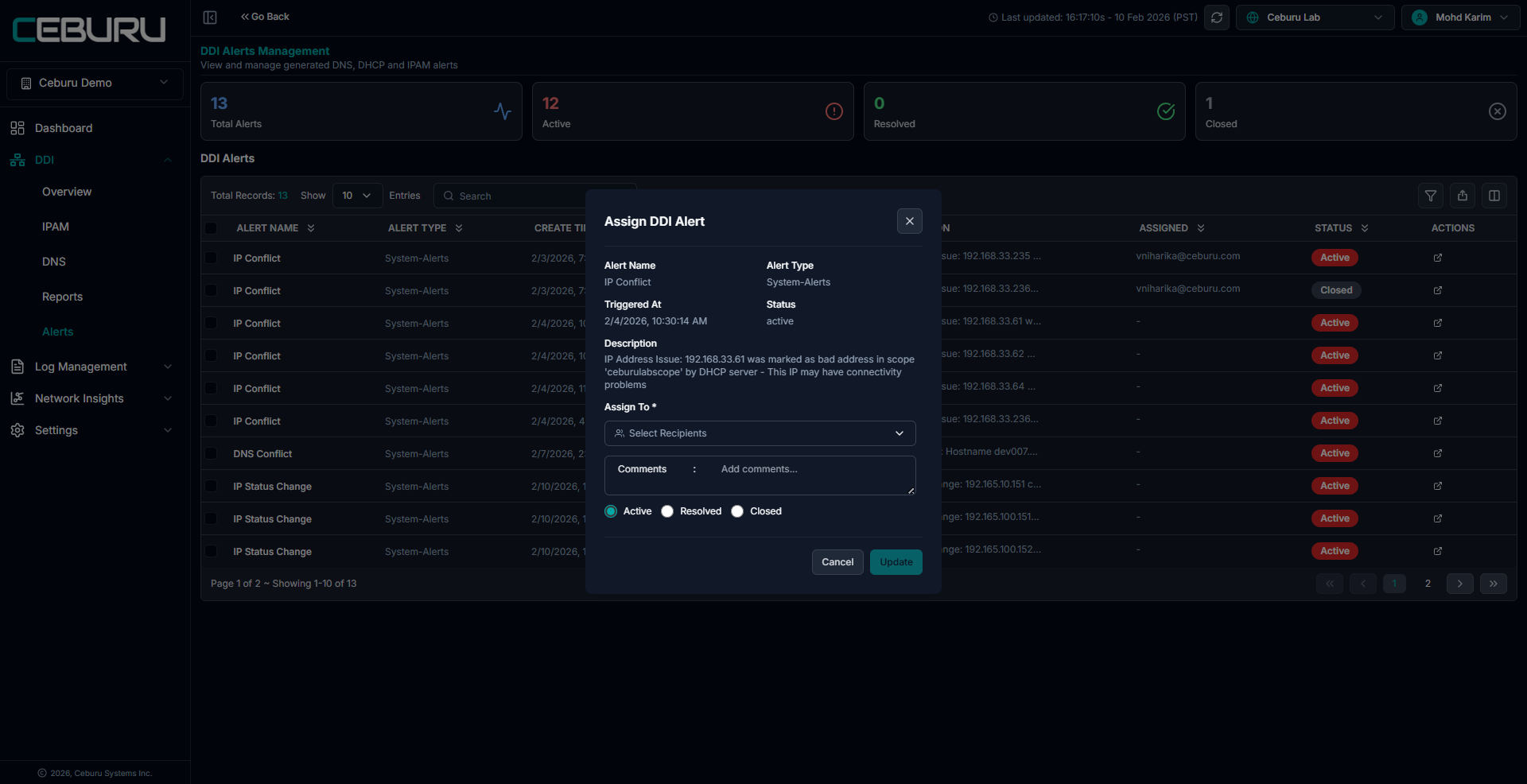
Assigning an Alert:
Click the action icon on an alert to open the Assign DDI Alert panel.
View alert name, type, trigger time, and description
Assign the alert to one or more users
Add optional comments
Alert Status Options:
Active: Indicates the issue is still present and requires attention.
Resolved: Used when the underlying issue has been fixed but the alert is kept for tracking and auditing.
Closed: Used when the alert is no longer relevant or has been acknowledged and finalized.
Changing the status updates the alert state in real time.
Was this article helpful?
That’s Great!
Thank you for your feedback
Sorry! We couldn't be helpful
Thank you for your feedback
Feedback sent
We appreciate your effort and will try to fix the article