Overview
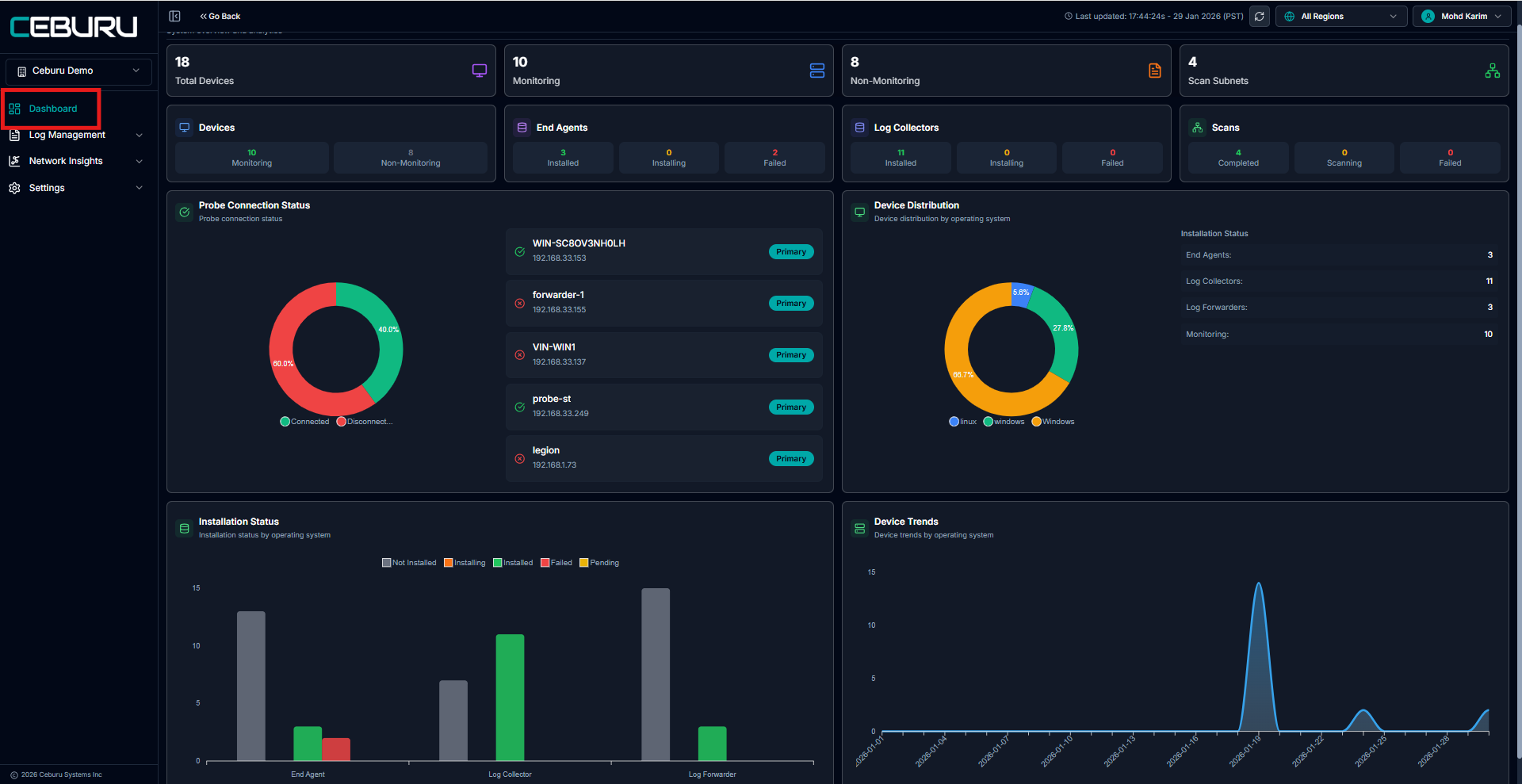
The Dashboard provides a centralized view of device inventory, monitoring status, probe connectivity, and installation health across the environment. It helps administrators quickly understand the current operational state of devices, agents, collectors, and scans, enabling faster troubleshooting and better visibility into system coverage.
Navigation Path
To access the Dashboard:
Open the left navigation menu
Click Dashboard
The Dashboard opens with high level metrics and detailed visual insights.
Key Metrics Summary
At the top of the dashboard, summary cards display overall system counts.
Total Devices: Displays the total number of devices discovered in the environment.
Monitoring: Shows the number of devices currently under active monitoring.
Non Monitoring: Shows the number of devices that are discovered but not actively monitored.
Scan Subnets: Displays the number of configured or scanned subnets.
Devices Overview
The Devices section provides a breakdown of monitoring coverage.
Monitoring: Devices actively monitored
Non Monitoring: Devices not currently monitored
This section helps identify gaps in monitoring coverage.
End Agents Status
Displays the status of end agents across the environment.
Statuses include:
Installed
Installing
Failed
This helps confirm successful agent deployment and quickly identify failures.
Log Collectors Status
Shows the status of log collectors deployed in the environment.
Statuses include:
Installed
Installing
Failed
This section ensures log collection infrastructure is correctly deployed.
Scans Status
Displays the status of scan jobs across configured subnets.
Statuses include:
Completed
Scanning
Failed
This provides visibility into network discovery and scanning activity.
Probe Connection Status
Shows the connectivity status of probes.
Connected probes are displayed as healthy
Disconnected probes are highlighted for attention
A donut chart visually represents the percentage of connected versus disconnected probes.
The probe list includes:
Probe name
IP address
Primary designation
This section helps quickly identify probe connectivity issues.
Device Distribution
Displays device distribution by operating system.
Common categories include:
Windows
Linux
Other supported operating systems
A donut chart visually represents the percentage distribution, helping understand OS diversity in the environment.
Installation Status by Component
Displays installation status across different components.
Components include:
End Agents
Log Collectors
Log Forwarders
Statuses include:
Not Installed
Installing
Installed
Failed
Pending
This chart helps track deployment progress and identify failed or incomplete installations.
Device Trends
Shows device trends over time by operating system.
This time based chart helps:
Track onboarding trends
Identify spikes in device discovery or deployment
Monitor growth patterns
Last Updated and Region Scope
The top right corner displays the last updated timestamp.
The region selector allows switching between regions or viewing data across all regions.
All metrics update dynamically based on the selected region.
Was this article helpful?
That’s Great!
Thank you for your feedback
Sorry! We couldn't be helpful
Thank you for your feedback
Feedback sent
We appreciate your effort and will try to fix the article