Overview
The SecureFlow Portal allows Company Admins and Users to securely upload, manage, and track encrypted files between Managed Service Providers (MSPs) and company environments. This guide covers both Outgoing Files (files you send) and Incoming Files (files you receive).
Outgoing Files on the SecureFlow
As a Company Admin/Company User, you can upload and manage encrypted files directly from the SecureFlow Portal.
Accessing the Portal
- Go to: https://secureflow.ceburu.com/en/login
- Log in using your Company Admin credentials
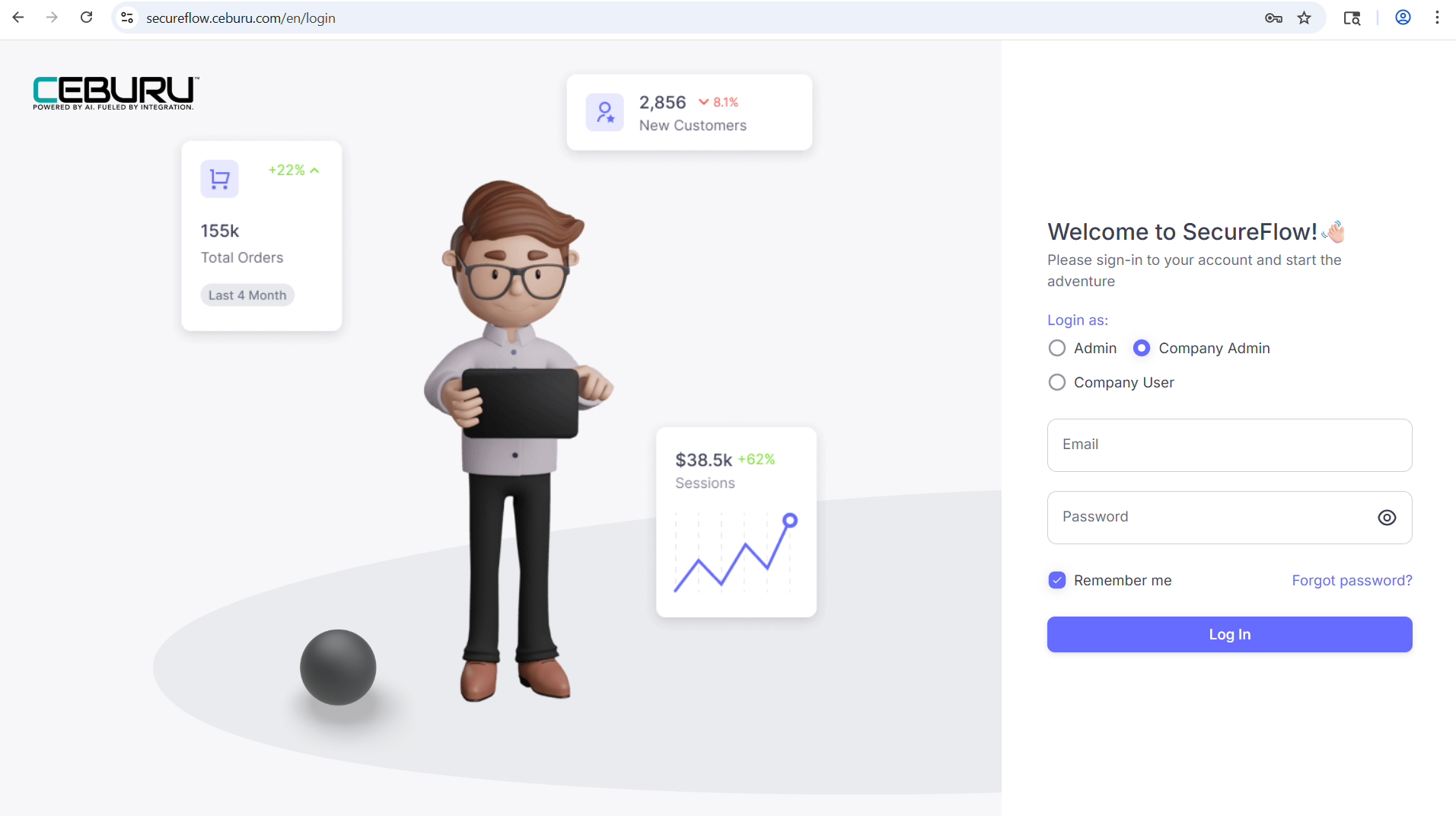
- Once logged in, you will be redirected to the Dashboard view.
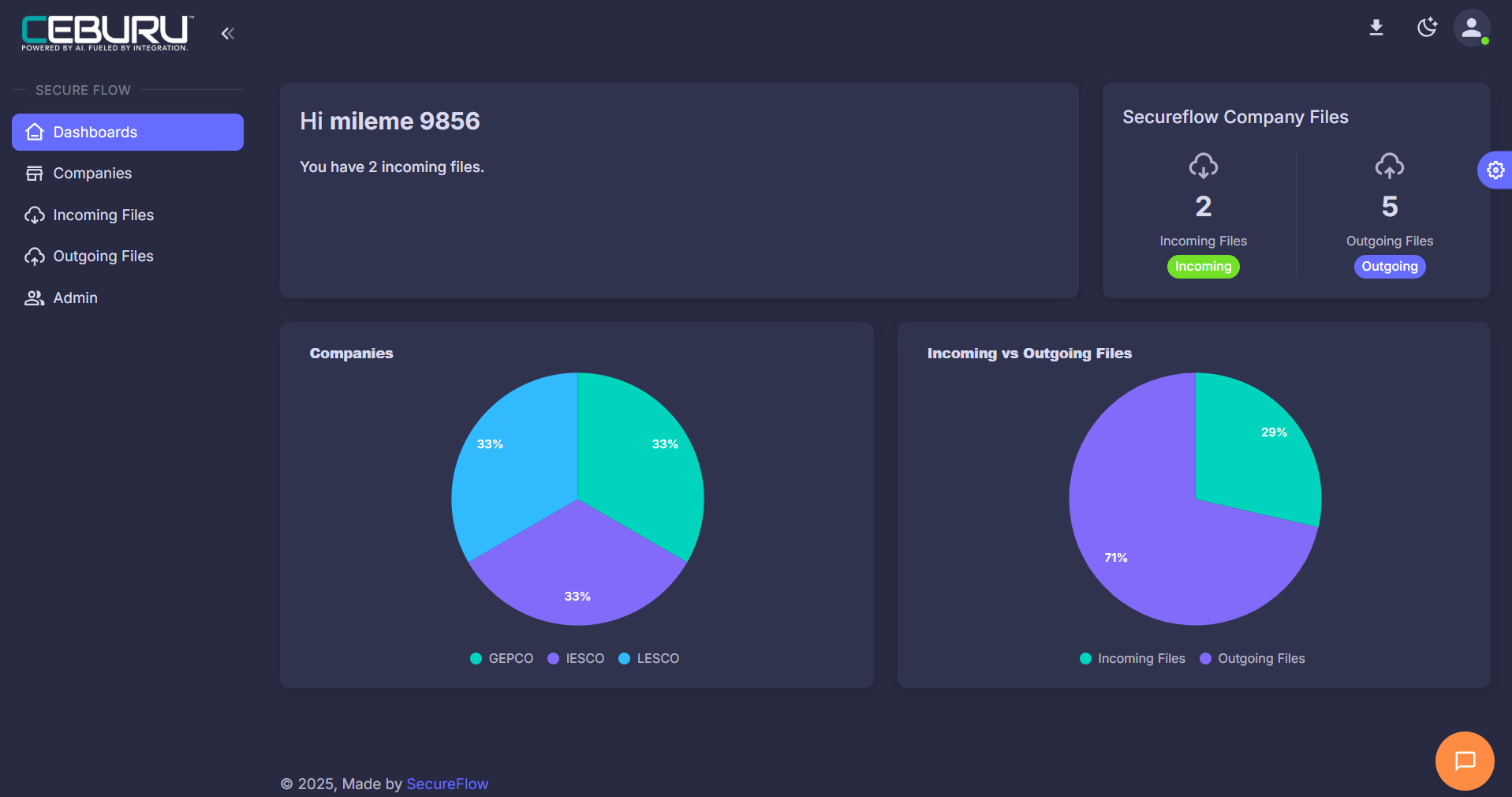
Managing Companies under MSP
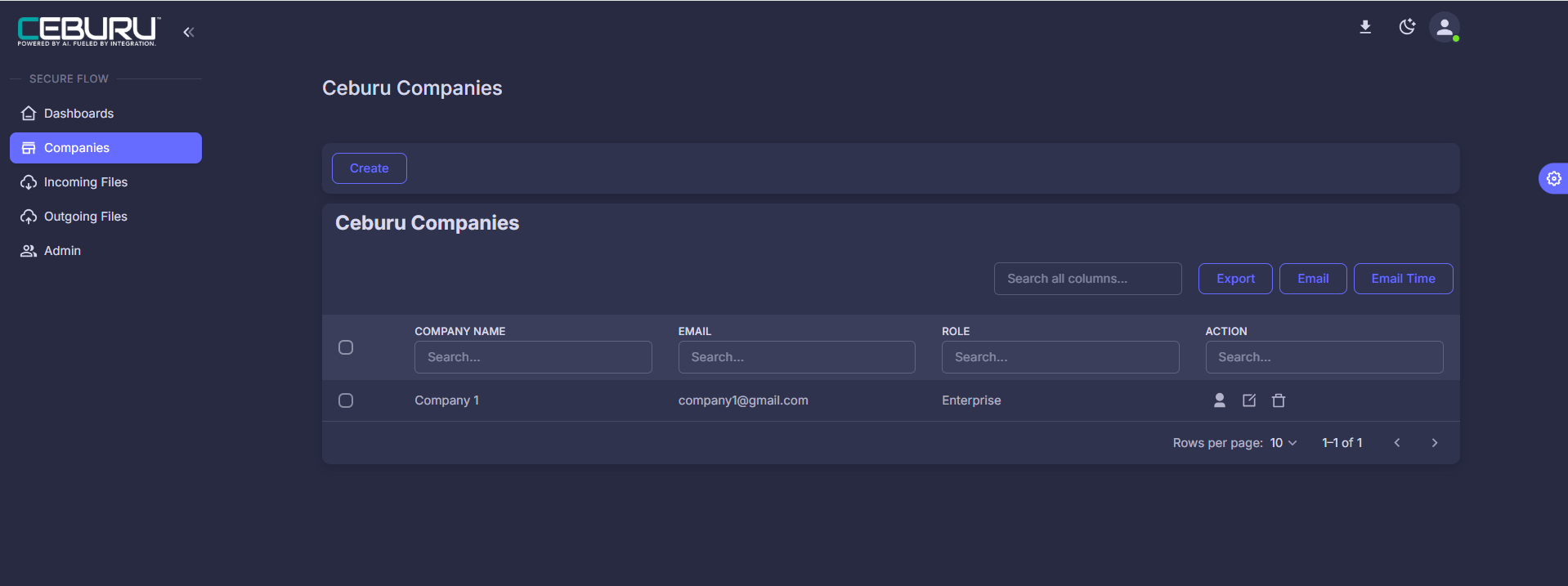
From the left-hand navigation menu, click Companies.
The Companies page will be displayed, showing all existing companies.
Create a New Company
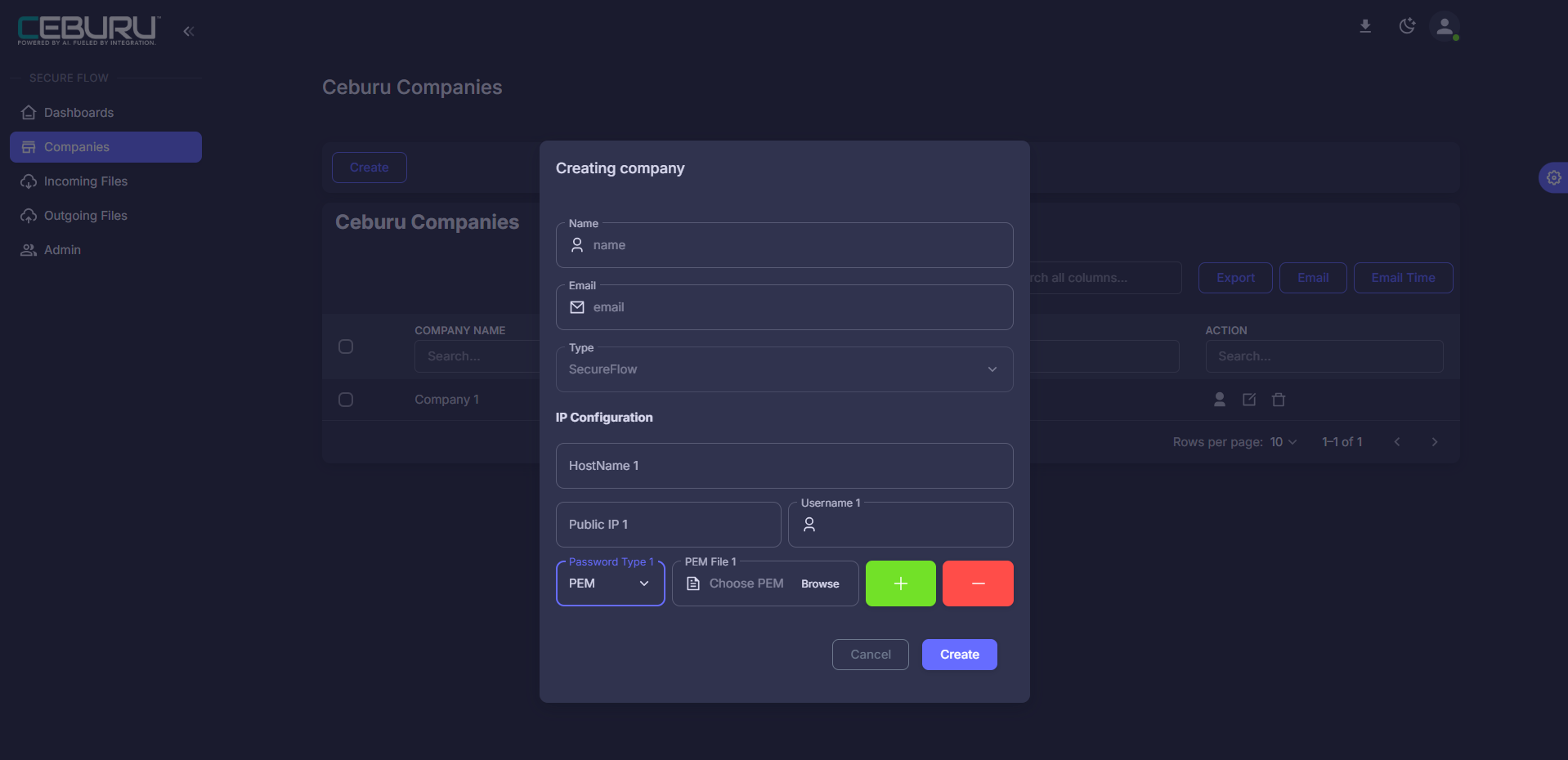
On the Companies page, click the Create button.
In the Creating company dialog:
Enter the Company Name
Enter the Email Address
Select the Type (e.g., SecureFlow)
Configure IP Configuration details:
Hostname
Public IP
Username
Password Type and Password
Click Create to save the company.
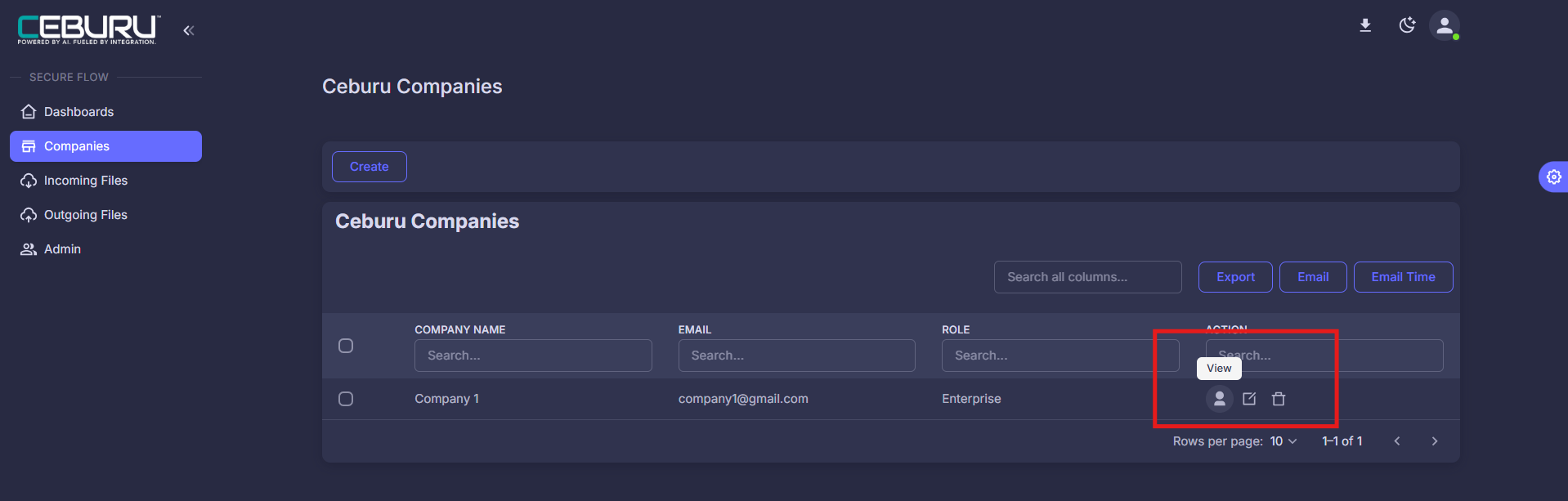
View Company Users
In the Companies table, locate the required company.
Click the User icon under the Action column.
You will be redirected to the Company Users page for the selected company.
Manage Users for a Company
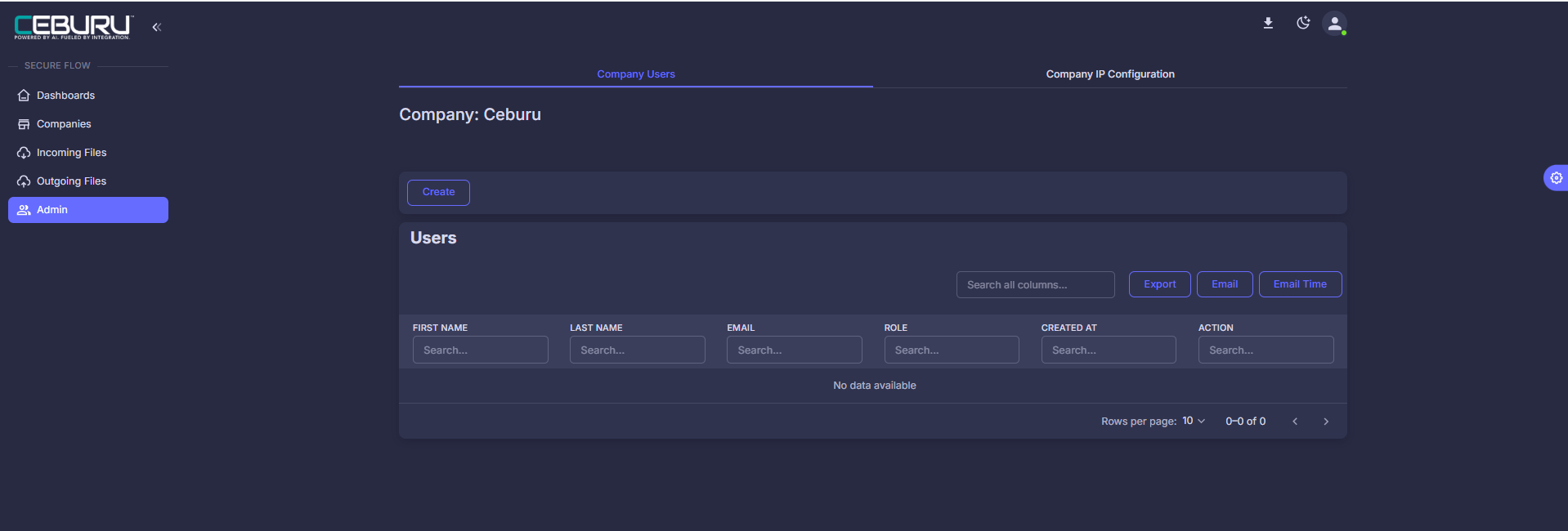
On the Company Users page, review the list of existing users.
Click Create to add a new user for the company.
Enter user details such as:
First Name
Last Name
Email
Role (e.g., Admin)
Save the user.
You can also edit or delete users using the action icons next to each user.
Navigating to Outgoing Files
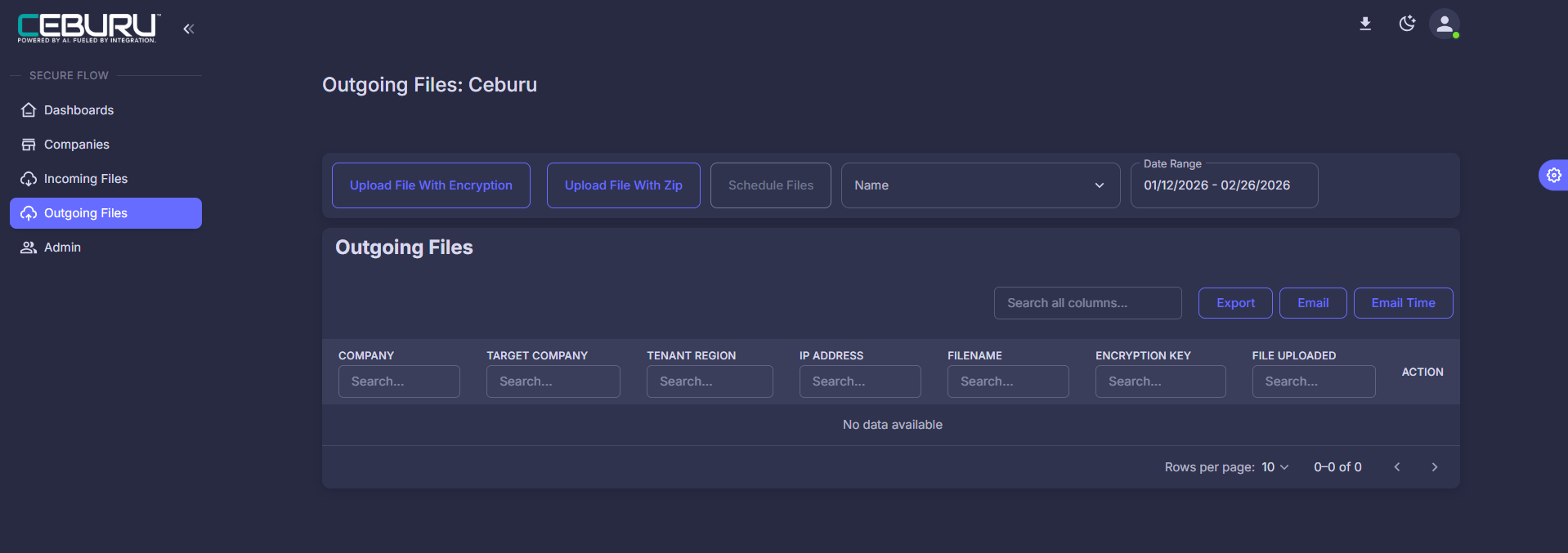
- On the left-hand navigation rail, scroll down to find the options:
- Incoming Files - used to view incoming data/files.
- Outgoing Files - used for uploading and sending files from Managed Service Provider (MSP) to the company.
- Click Outgoing Files to open the Outgoing Files management page.
Upload File with Encryption
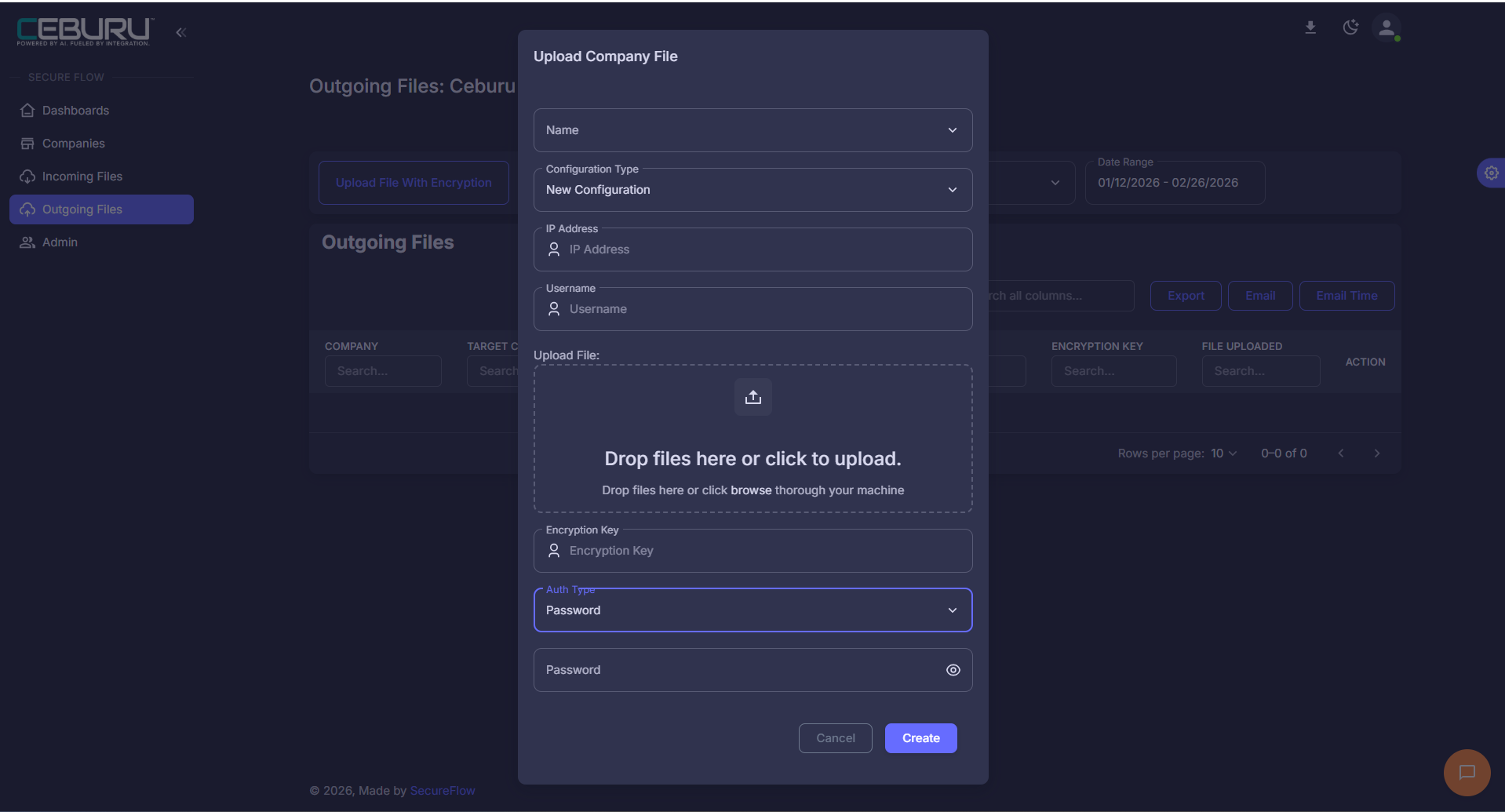
On the Outgoing Files page, click Upload File With Encryption.
In the Upload Company File dialog, enter the following details:
Company Name - Select the target company
Configuration Type Choose:
New Configuration, or
Existing Configuration
IP Address
Username
Upload File - Select the file to upload
Encryption Key
Auth Type - Select the authentication method (e.g., PEM File)
Upload PEM File (if applicable)
Click Create to upload the encrypted file.
The file will be securely uploaded and listed in the Outgoing Files table.
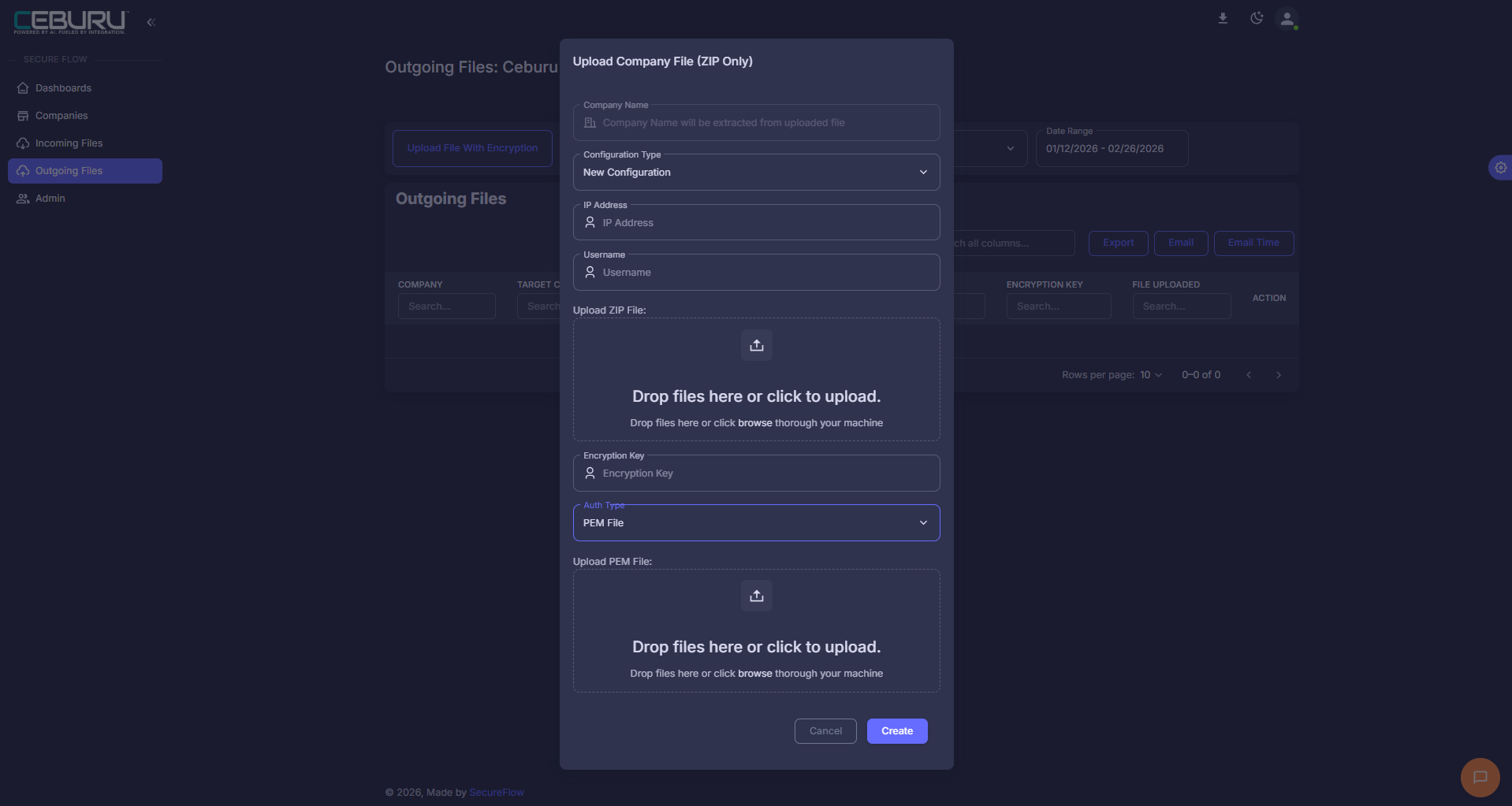
Upload File Using ZIP
Click Upload File With Zip on the Outgoing Files page.
In the Upload Company File (ZIP Only) dialog:
The Company Name will be extracted automatically from the ZIP file.
Select Configuration Type:
New Configuration, or
Existing Configuration
Enter IP Address and Username
Upload the ZIP File
Enter the Encryption Key
Select Auth Type (if required)
Click Create to complete the upload.
ZIP uploads allow multiple files to be transferred securely in a single operation.
Completing the Upload
- After entering all details, click Create.
- The file will be uploaded with encryption and listed under the Outgoing Files table.
- Details such as Company, Target Company, IP Address, Filename, Encryption Key, and Upload Time will be visible.
- You can use the Action icons beside each file entry to:
- Edit the details.
- Delete the file.
- Download if required.
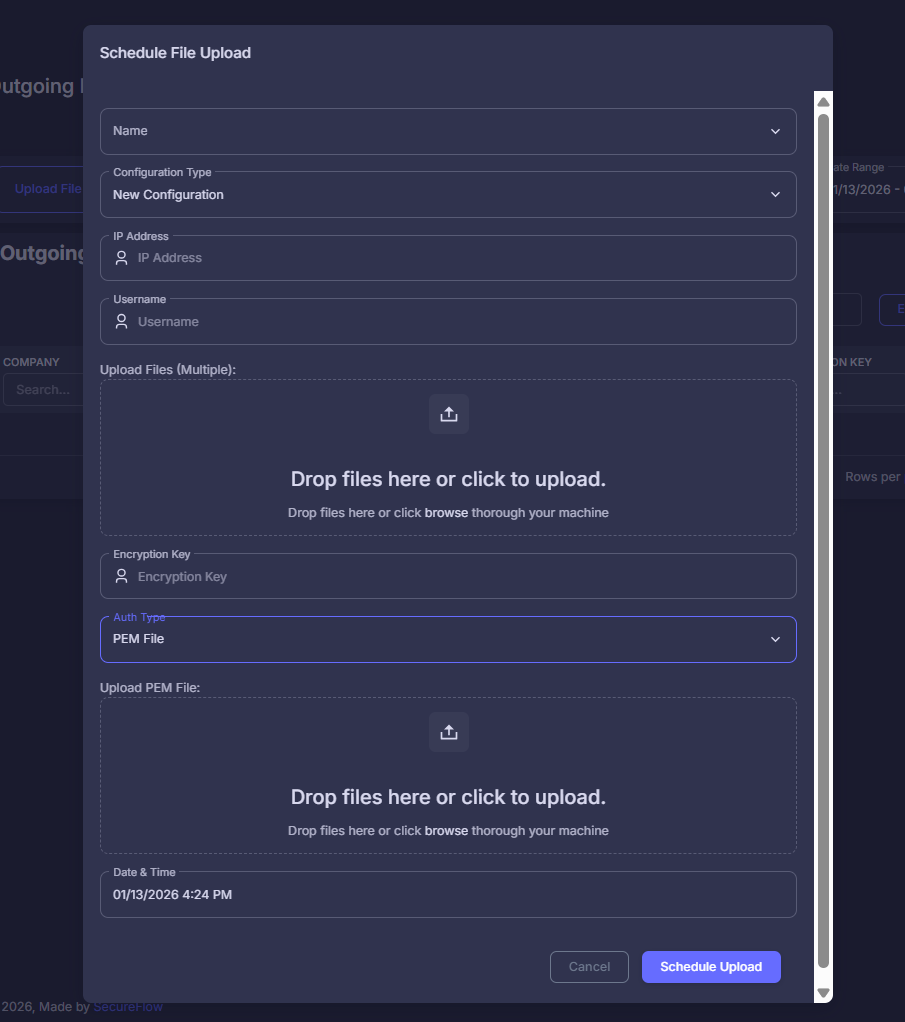
Scheduling File Uploads
- The system allows you to schedule file uploads for a specific date and time.
- Use the Schedule Files option next to the upload button.
- Select the required date range, and the upload will be processed automatically at the scheduled time.
Additional Options
- Export - Download the outgoing files report.
- Email - Send outgoing file details to your email.
- Email Time - Schedule automated emails for outgoing file status.

Company Admins can securely upload, encrypt, and schedule outgoing files to MSP accounts directly through the SecureFlow portal.
Incoming Files on the SecureFlow:
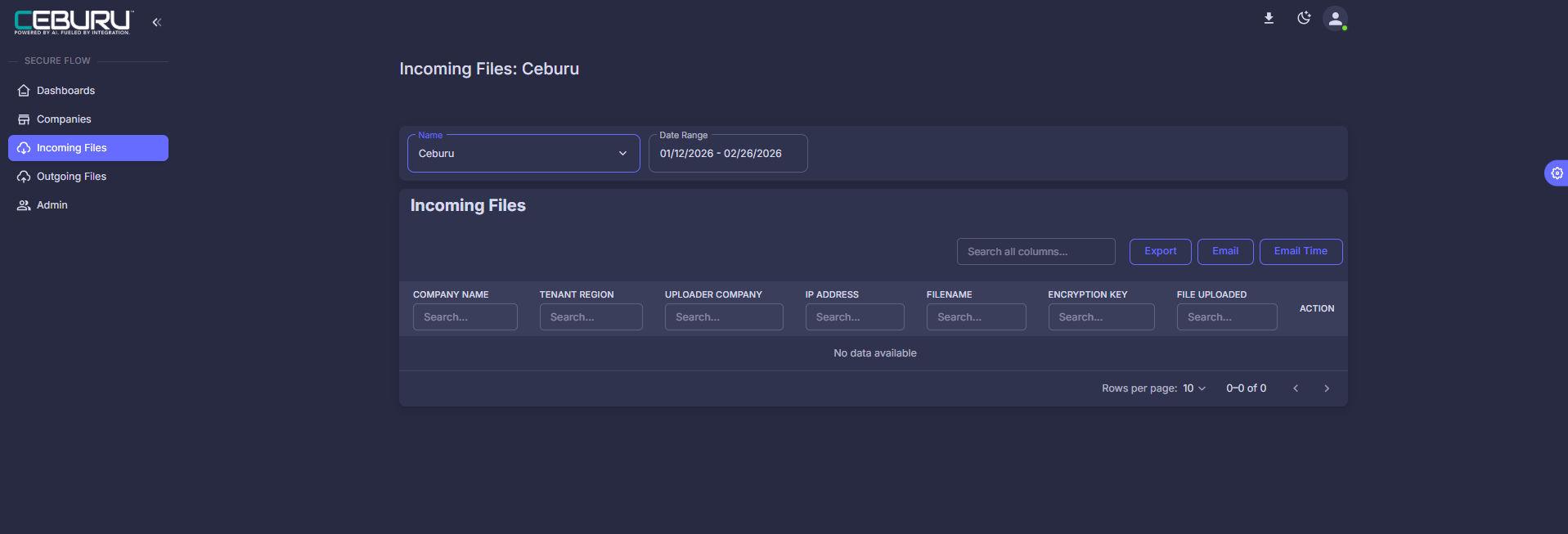
The Incoming Files feature in SecureFlow allows you to view and manage files uploaded by other companies (such as MSPs or partner companies) into your environment.
This section provides full visibility into all file transfers, including encryption details, uploader company, and timestamps.
From the left-hand navigation menu, click on Incoming Files.
Incoming Files Dashboard
The Incoming Files page displays a searchable and filterable table with detailed information for each uploaded file.
Each row contains the following details:
- Company Name -The company receiving the uploaded file.
- Uploader Company-The company that uploaded the file.
- IP Address - The IP address of the system used for the upload.
- Filename - The name of the uploaded file.
- Tenant Region
- Encryption Key - The encryption key applied to secure the file.
- File Uploaded - The exact date and timestamp when the file was uploaded.
- Action Options - Icons available to:
- Download the file.
- Delete the file.
- View additional details about the upload.
Additional Options
On the top-right of the Incoming Files section, you have the following options:
- Export - Download a complete list of incoming file records in a report format.
- Email - Send details of incoming files to your registered email.
- Email Time - Schedule automated reports about incoming files to be delivered via email at a specific time.
Create a New IP Connection
- From the left navigation menu, click Admin.
- Select the required Company.
- Click on the Company IP Configuration tab.
The Connection Details page will be displayed, showing all existing IP connections for the selected company.
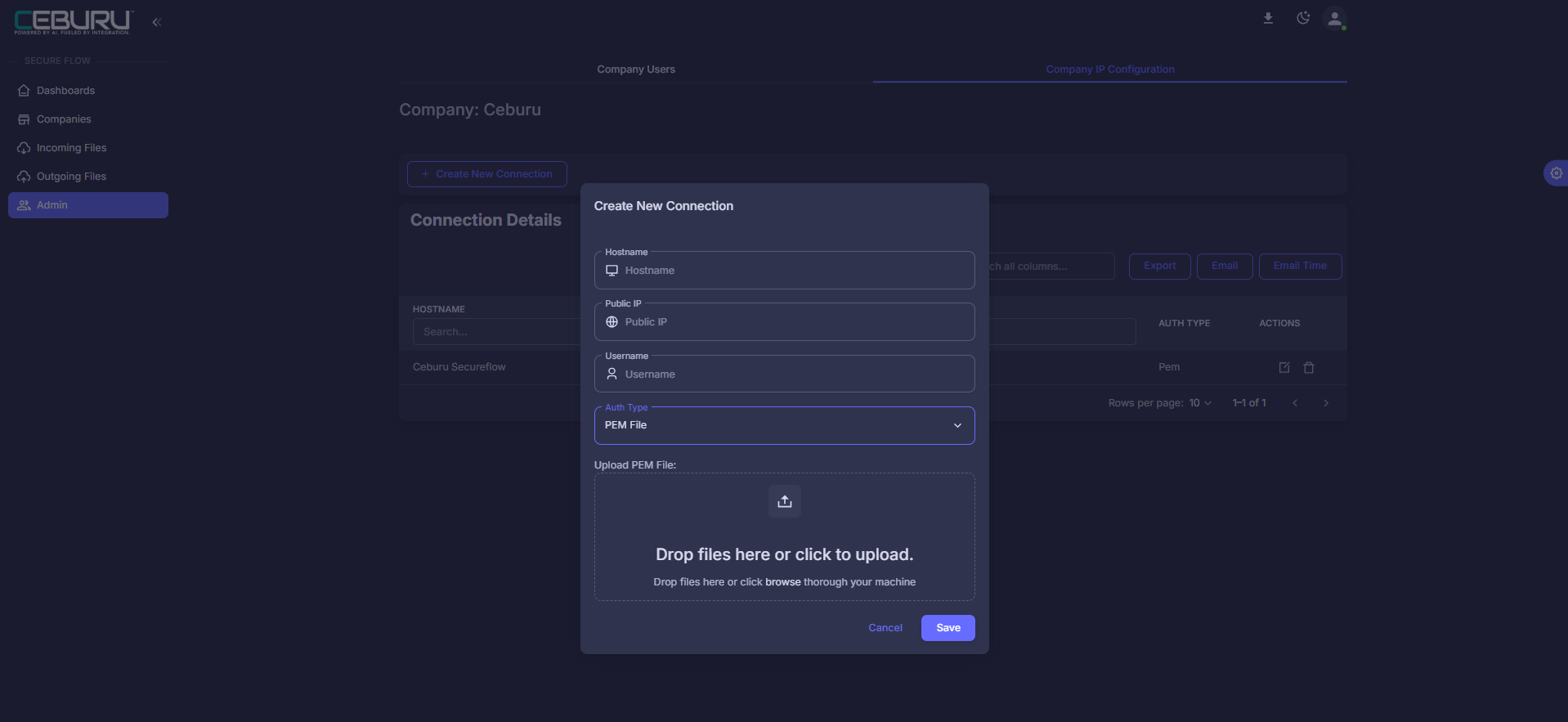
On the Company IP Configuration page, click + Create New Connection.
In the Create New Connection dialog, enter the following details:
Hostname - Server or system hostname
Public IP - Public IP address of the destination server
Username - Authentication username
Auth Type - Select the authentication method (e.g., PEM File)
Upload PEM File - Upload the required PEM key file (if applicable)
Click Save to create the connection.
The newly created IP configuration will appear under Connection Details.
Manage IP Connections
Use the Search fields to quickly locate connections by hostname, IP, or username.
Use Export, Email, or Email Time options for reporting and auditing.
These IP configurations can be reused when uploading Outgoing Files using:
Existing Configuration, or
New Configuration during file upload.
Summary
Using SecureFlow, Company Admins can:
- Upload and encrypt outgoing files securely.
- Schedule automatic uploads and email reports.
- Monitor incoming file activity and maintain full visibility of file transfers.
Was this article helpful?
That’s Great!
Thank you for your feedback
Sorry! We couldn't be helpful
Thank you for your feedback
Feedback sent
We appreciate your effort and will try to fix the article